Get Started
1. 2. 3. 4. 5.
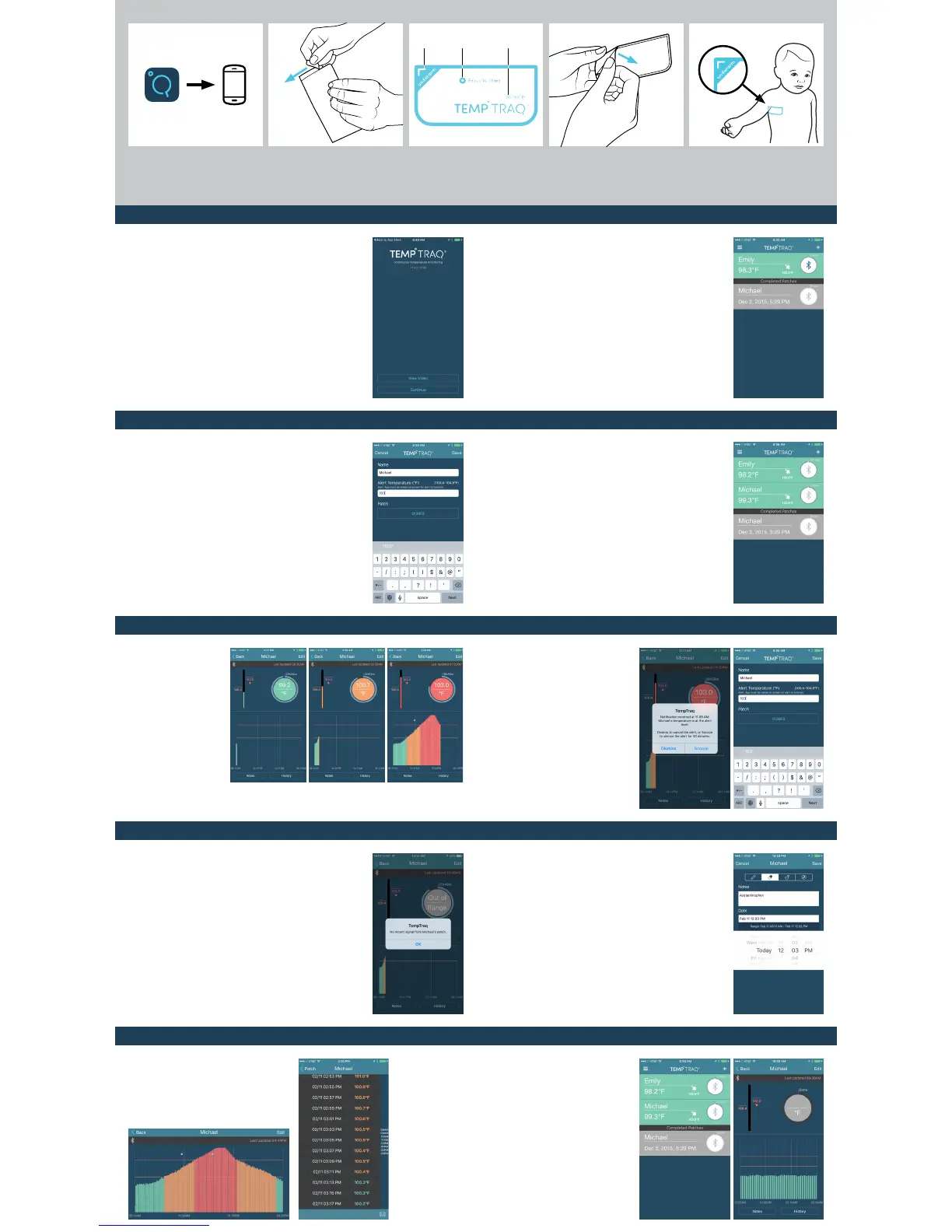
DOWNLOAD AND INSTALL APP
The TempTr aq app can be downloaded from
the App Store
SM
or Google Play™ store.
OPEN PACKAGING
When you are ready to use TempTra q, open
the foil packaging and remove the patch. Be
careful not to excessively bend the patch.
REMOVE BACKING
Remove the backing from the patch just prior
to application.
APPLY PATCH
Apply the patch directly under the arm with the
sensor - the corner marked "underarm" - in the
center of the armpit. The patch can be placed
on either side of the body. The TempTraq logo
should be in an upright position.
ACTIVATE PATCH
Squeeze the area marked by "Press to Start"
between the thumb and forefingers to activate
the patch. You will feel the switch "click" when
you have successfully activated the patch.
Start App
Add a New Patch Patch List
Add a New Patch
Patch Detail Alert Notification and Alert Temperature
Patch Out of Range Adding Notes
GREEN indicates a
temperature that is in
the normal range
ORANGE indicates a possible
fever of 100.4 °F (38.0 °C)
or higher
RED indicates a reading equal
to or higher than the user alert
temperature (ex. 103.0 °F)
Graph View and Table View Patch Done
When in the Patch Detail screen, turn your
smart device horizontally to display an
expanded graph. Use pinch and zoom to
view portions of the graph in more detail.
Rotate your smart device back to vertical
to return to the Patch Detail screen.
When in the Patch
Detail screen
monitoring an
individual patch,
select the "History"
button to view a
list of temperature
measurements for a
more detailed look
at the temperature
changes over time.
You may also tap
the icon in the upper
right of this screen
to export data via
e-mail. The data
is sent as a .csv file
which can be viewed
in Microsoft
©
Excel
©
.
Open the app on your smartphone. Please
take time to review an in-depth video on the
use of TempTra q.
As soon as the patch is started and applied to
your child, it immediately begins monitoring body
temperature. To monitor your child's temperature
with the app, you will need to add a
new patch by selecting the "+" sign in the upper
right of this screen.
Enter your child's name; then enter an alert
temperature. The app indicates a possible fever
for temperatures of 100.4 °F (38.0 °C) or higher. In
addition, you may enter an alert temperature for
when you want the app to alert you. Next, select a
patch by choosing the ID number that corresponds
to the ID number on the patch on your child. Select
"Save" to set up the patch.
NOTE: To switch between Celsius and Fahrenheit,
choose the appropriate selection within settings for
the TempTraq app.
This is your patch list, which shows a status bar
for each active patch. Within each status bar,
you will find the current temperature of each
child, the child's alert temperature and the time
remaining for the patch. Within the circle, the
Bluetooth
®
symbol will pulse whenever new data
is received from the patch. To edit or delete a
patch, swipe the status bar from right to left
on iOS devices, and long tap the status bar on
Android devices. Patches that have completed
their 24 hour monitoring period are also shown
on this screen and their data is retained in the
app until you delete it. Tap on the status bar to
navigate to the Patch Detail screen.
If your child's temperature is equal to
or greater than the user selected alert
temperature - 103.0 °F in this example
- the background color within the
circular display for current temperature
will change to red and your device
will receive an alert notification. Select
"Snooze" to silence the alert for 30
minutes. If your child's temperature is
still above the alert level at the end of
the 30 minute snooze period, you will
receive another alert. If your child's
temperature falls below the alert
temperature during this 30 minute
snooze period, the alert notification
will be canceled. Choose "Dismiss" to
cancel the alert.
The Patch Detail screen
shows your child's
current temperature, the
alert temperature, and
time remaining for the
patch. The graph at the
bottom of the screen
illustrates your child's
temperature over time.
Use pinch and zoom
to view portions of the
graph in more detail. The
app uses colors to show
the current temperature
status for each child.
When the smart device running the TempTraq app
has not received a signal from the patch for more
than 15 minutes, the app will alert you, and will display
"Out of Range" in place of current temperature. To
correct an "Out of Range" condition, try moving your
smart device closer to the patch until you once again
begin to receive current temperature data. For iOS
devices, the app must be open and visible on screen
to receive data from the patch.
The TempTraq app allows you to add notes to your
child's temperature history by selecting the "Notes"
button at the bottom of the Patch Detail Screen.
Select "+" to add a note. You can choose from three
preset events - medication, bath, or feeding - or
create a custom note. Select the date and time that
corresponds to the event or note and then press
"Save" to save the note. Notes will be listed on this
screen for review and editing and can be exported
by tapping the export icon. A note icon is also added
to the temperature history graph for each new
note. Tap a note icon on the graph at any time to
navigate to this Notes screen.
The patch stops measuring after
24hrs at which point it no longer
sends the current temperature to
the app. It will continue to send
the complete temperature history
for an additional 24 hour period.
The app shows the word "Done" to
indicate that the 24 hour period of
monitoring is completed. The data
for the patch is retained in the app
until you delete it.
SENSOR
ACTIVATION
SWITCH
ID NUMBER


 To Previous Page
 Loading...