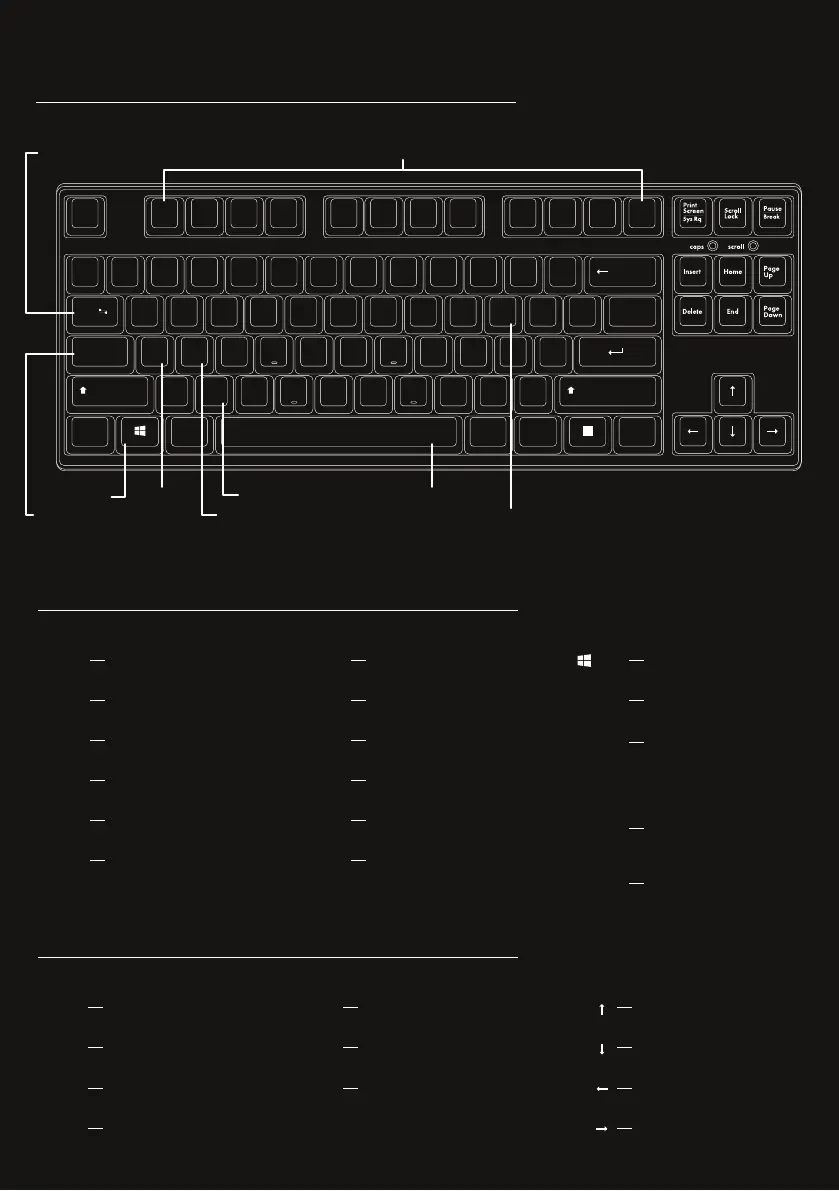
LAYOUT
KEY FUNCTIONS
Fn + F1
Fn + F2
Fn + F3
Fn + F4
Fn + F5
Fn + F6
My Computer
Web Browser
e-Mail
Music Player
Previous Track
Next Track
Fn + F7
Fn + F8
Fn + F9
Fn + F10
Fn + F11
Fn + F12
Start / Pause Track
Stop Track
Volume Up
Volume Down
Mute
Calculator
Fn +
Fn + Left Ctrl
Win
Lock Windows Key
Swap left Ctrl and Caps Lock
Fn + Space
Factory Reset
(Hold the keys for 3 seconds. After
which, the keyboard will be fully
resetted back to factory settings)
Fn + A
Swap to Windows Mode
(default)
Fn + S
Swap to MAC Mode
Fn + 1
Fn + 2
Fn + 3
Fn + 4
Respiration/ Perpetual
3-Cycle Aurora
2-Cycle Aurora
Ripple / Cluster
BACKLIGHT SETTING
Fn + 5
Fn + 6
Fn + 7
Linear / Wave / Pulse
Sonar / Echo
Random
Fn +
Fn +
Fn +
Fn +
Increase Brightness
Decrease Brightness
Increase Frequency
Decrease Frequency
Esc
~
`
!
1
Q W E R T Y U I O P
A S D F G H J K L
@
2
#
3
$
4
%
5
^
6
&
7
*
8
(
9
)
0
_
-
+
=
{
[
:
;
“
‘
}
]
|
\
F1 F2 F3 F4 F5 F6 F7 F8 F9 F10 F 11
Backspace
F12
Enter
Tab
CapsLock
Z X C V B N M
<
,
>
.
?
/
ShiftShift
Ctrl Alt
Alt Fn Ctrl
Macro / Normal Mode Shortcuts
Left CTRL / CAPS switching
WIN Key Lock
Macro Keys
Factory Reset
Bluetooth
WIN Mode
MAC Mode


 To Next Page