7
be “Selected” (check box). Set the “Master Volume” (if
available) and the “Microphone Volume” controls to
50%. These settings should be adequate for normal
operation.
· If the SignaLink is attached your radio’s Mic jack, then
all further adjustment of the Receive Audio level should
be done with the radio’s Volume control. If you are not
able to get an adequate amount of Receive Audio with
these settings, then you can set the sound card Mic
volume control higher, or adjust the SignaLink’s
internal “RX Level” control for more output (see “TX
Level and RX Level Controls” at the end of this
section).
· If the SignaLink is attached your radio’s Data or
Accessory Port, then all further adjustment of the
Receive Audio level should be done with the sound
card’s Mic volume control, or the SignaLink’s internal
“RX Level” control (see “TX Level and RX Level
Controls” at the end of this section).
· If you are unable to get an adequate Receive Audio
level, then please see the Troubleshooting section of
this manual.
- TX LEVEL AND RX LEVEL CONTROLS -
IMPORTANT - Do not attempt to adjust these controls
until after you have completed either the “Quick” audio
level setting procedure, or the more detailed procedure in
the back of this manual. The TX Level and RX Level
controls do NOT need to be adjusted for most installations.
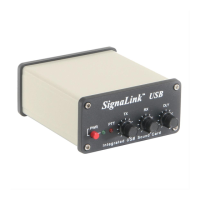
The SignaLink’s TX Level and RX Level controls allow you
to adjust the Transmit Audio level going to the radio, and
the Receive Audio level going to the sound card. The
factory default setting for both of these controls is fully
counter-clockwise (minimum) and is ideal for most
installations. However, some equipment combinations may
require more audio than the factory settings provide. If you
have completed the audio level setting procedure, and
cannot get adequate Transmit power or Receive Audio, then
you can adjust these controls to provide the correct level for
your installation. The location of these controls is shown in
Figure 4. To increase the level, simply turn the control
clockwise. We recommend that you use the proper trimmer
adjustment tool to do this, but a small jewelers type
screwdriver can be used instead.
NOTE: The “TX Level” control does NOT affect the
operation of the SignaLink’s PTT circuit. If you cannot get
the PTT LED to turn ON, it has nothing to do with the TX
Level adjustment. You should NOT adjust the TX Level
control until the sound card levels have been set properly
and the SignaLink is switching to Transmit. See the
Troubleshooting section of this manual if you need
assistance with this problem.
- GENERAL RADIO SETTINGS -
Virtually all digital modes require that you TURN OFF any
Speech Processing or Compression features in your radio.
This is to insure RF linearity. You must also TURN OFF
your VOX circuit when using the SignaLink. As mentioned
in the sound card level settings procedure, you can usually
use your radio’s USB mode for digital operation (LSB for
some bands). However, if the SignaLink is connected to a
Data or Accessory Port, then you may need to select a
special mode such as “Data”, “User”, “D-USB” or “D-LSB”
(to name a few). If you are not sure which mode to use,
then consult your radio manual.
- SIGNALINK OPERATION -
Operation of the SignaLink is very simple. The
SignaLink’s “receive” circuitry is active at all times, so you
do not need to turn it ON to receive signals through it. The
“transmit” circuitry is only active when the unit is turned
“ON”. When active, the SignaLink will trigger your radio’s
PTT whenever it sees sound card activity, so it is important
to keep it turned “OFF” when it is not in use to prevent
accidental transmissions. If you are using your computer
solely for Digital operation, you might want to consider
disabling your Windows sounds.
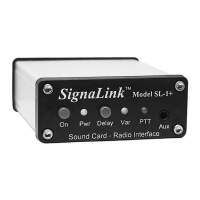
Delay Switch - The front panel “Delay” switch is used to
control the Transmit “Hang Time” for the SignaLink’s
Auto-PTTä circuit. With the Delay switch OUT, the radio
will remain keyed for approximately 30 milliseconds after
Transmit Audio from the sound card has stopped. This
setting is suitable for CW QSK operation, and other modes
that require fast turn-around times like Packet. It is also the
best position for many other digital modes like PSK-31 and
MT63.
With the Delay switch pressed IN, the “Var” LED on the
SignaLink’s front panel will turn ON to indicate that the
variable Hang Time delay is selected. In this position, the
Hang Time delay can be adjusted from approximately
300ms to 3 seconds, by means of an internal “Delay”
control (see Figure 4 for location). The factory default
setting for this control is approximately two seconds, which
is adequate for most Voice modes such as Internet Repeater
Linking, Remote Base operation, and Voice Contest Keyers.
For slow AFSK CW, you will probably want to decrease the
Hang Time delay to between 500 ms and 1 second.
- VISIT US ON THE INTERNET -
If you have Internet access, please visit our web site at:
http://www.tigertronics.com


 To Next Page
 Loading...