Need help?
Do you have a question about the Tilted Nation TNSpectre and is the answer not in the manual?
Lists included accessories like RF dongle, keycap puller, switch puller, and charging cable.
Connects the keyboard via USB cable for wired operation. Device is Plug-N-Play.
Guides setup for wireless connectivity using the RF dongle and powering on the keyboard.
Guides users on connecting the RF dongle, powering on, and setting RF mode.
Provides steps to re-establish connection between keyboard and RF dongle if lost.
Explains how to use keycap and switch pullers for removal and reattachment of keycaps.
Details the process of removing and reattaching keyboard switches, cautioning against bent pins.
Describes the capabilities of the Tilted Nation software for RGB, profiles, and macros.
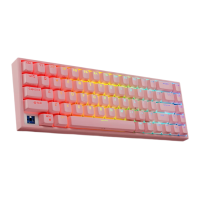
The TNSPECTRE/P/W is a 68-key RGB gaming keyboard designed for users seeking a compact yet feature-rich input device for both gaming and productivity. This user guide provides comprehensive instructions for setup, operation, and maintenance, ensuring users can maximize their experience with the TNSpectre.
The TNSpectre keyboard serves as a primary input device for computers and laptops, offering both wired and wireless connectivity options. Its 68-key layout is a compact design, omitting the numeric keypad and some function keys to save space while retaining essential functionality. The RGB lighting system allows for extensive customization, enhancing the aesthetic appeal and providing visual cues for different modes or profiles. The keyboard is designed with hot-swappable switches, enabling users to easily change out individual key switches without soldering, catering to personal preferences for typing feel and sound.
The TNSpectre offers versatile connectivity. For wired use, simply connect the USBC end of the provided cable to the keyboard and the USBA end to an available USB port on your computer. The device is plug-and-play, and drivers will install automatically on Windows. In wired mode, the keyboard's internal battery also charges, preparing it for wireless operation.
Wireless connectivity is achieved via an RF dongle. To use wirelessly, plug the RF dongle into a USB port, then turn on the keyboard's internal battery using the on/off switch located on the back. To activate RF mode, press and hold the FN key, then press and release the Q key. The keyboard will then operate wirelessly. Users can switch back to wired mode by holding FN and pressing the T key. The keyboard can be charged wirelessly by plugging it into any USB charger.
A key feature is the ability to re-sync the keyboard to the RF dongle if needed. This involves removing the dongle, pressing FN+Q until the Q LED flashes, then pressing and holding FN+P for 5 seconds until both Q and P keys flash. Finally, re-inserting the RF dongle will automatically re-sync the keyboard.
The TNSpectre is preprogrammed with 34 productivity and RGB shortcuts, accessible by holding down the FN key and pressing the corresponding shortcut key. These shortcuts cover a wide range of functions, including media control, system commands, and RGB lighting adjustments. For instance, FN+ESC resets the keyboard to factory default settings, while FN+L locks/unlocks all keys. FN+WIN locks the Windows key, preventing accidental presses during gaming. Function keys F1-F12 are accessed by holding FN and pressing the corresponding number key (1-0, -, =). Other shortcuts include print screen (FN+[), scroll lock (FN+]), pause (FN+;), insert (FN+6), home (FN+.), and end (FN+/).
The Tab key serves a unique function for identifying the current connection mode. Pressing FN+Tab will cause the Tab key to flash for 10 seconds: green for RF wireless mode and pink for wired mode.
RGB lighting control is extensive. FN+Del cycles through 19 predefined RGB modes, while FN+~ changes the static RGB color (offering 8 color options). FN+\ starts or stops RGB recording, allowing users to create custom lighting patterns. FN+Space turns RGB lighting on or off. Brightness can be adjusted with FN+↑ (increase) and FN+↓ (decrease), and RGB speed with FN+← (decrease) and FN+→ (increase). Volume control is also integrated with FN+PgUp (volume +) and FN+PgDn (volume -).
A notable feature is the ability to record a custom static RGB layout. To do this, press and release FN+\ to enter custom RGB mode, then press FN+\ again to initiate recording. The Win and Caps LEDs will flash rapidly. Users can then press each key to cycle through different color options for that specific key. Once satisfied, pressing FN+\ one more time saves and applies the custom pattern. During recording, keyboard typing is disabled, and only one static layout can be recorded.
The Tilted Nation software, available for download from www.tiltednation.com, further enhances the keyboard's functionality. This software provides full control over RGB settings, allows for the creation of custom profiles tailored to specific games, and enables the creation of custom macros (combination keys) to gain an advantage in gameplay.
The TNSpectre is designed for user-friendly maintenance, particularly for cleaning and customization. The package includes both a keycap puller and a switch puller.
To remove keycaps for cleaning or replacement, first unplug the keyboard. Then, attach the keycap puller over the desired keycap, pushing it down until it firmly grasps the cap. Pull upwards to remove the keycap from the switch. To reattach, align the crosshairs under the keycap with the switch and push it down into place.
For removing switches, which is useful for cleaning underneath or for swapping out switches, ensure the keycap is already removed. Place the switch puller over the top and bottom parts of the switch and clamp it tightly. Lift upwards to remove the switch. It is crucial to align the switch pins correctly when reattaching them to avoid bending the pins and rendering the switch unusable.
The keyboard's internal battery is charged automatically when connected in wired mode. When using wirelessly, the left CTRL key will flash to indicate a low battery, prompting the user to connect the USBC charging cable to the keyboard and a USBA charger.
Safety instructions emphasize keeping the device away from liquid, humidity, and moisture, operating it within a specific temperature range (0°C to 40°C), and refraining from disassembling it to avoid voiding the warranty. Proper disposal of the product at a local recycling center is also advised.
 General
| Brand | Tilted Nation |
|---|---|
| Model | TNSpectre |
| Key Rollover | N-Key Rollover |
| Backlighting | RGB |
| Case Material | Aluminum |
| Layout | ANSI |
| Connectivity | Wired (USB) |
| Programmability | Yes |
| Size | Full-size |

 To Next Page