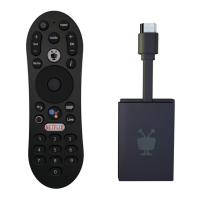
This document describes how to access and use Midco® ON Demand services with a TiVo® device.
Function Description:
The TiVo device, in conjunction with Midco® ON Demand, provides access to a vast library of entertainment content, including movies, TV shows, sports, news, and free programs from various cable networks. It allows users to browse, select, and watch content on demand, offering flexibility in viewing choices. The system also incorporates parental and purchase controls to manage content access and spending.
Usage Features:
Accessing Midco ON Demand:
There are two primary ways to access Midco ON Demand:
-
Using the Remote Control:
- Press the "1" button on the remote control.
- Alternatively, press the "ON Demand" button on the remote control.
-
From the TiVo Menus:
- Navigate to "Find TV, Movies & Videos."
- Select "Midco ON Demand."
Browsing and Selection:
Once in the Midco ON Demand screen, users can browse available categories such as "All Movies," "Free ON Demand," and "New Releases" using the UP/DOWN arrows on the remote.
- Highlight a category and press "SELECT."
- Move through titles one at a time using UP/DOWN arrows.
- Scroll through an entire page using CHAN UP/DOWN buttons.
- For free content, simply select the "Watch Now" bar.
- For purchased content, the selection bar will display the price (e.g., "Rent & Watch ($3.99)").
My Rentals Folder:
Purchased or rented ON Demand content is available for 24 to 48 hours in the "My Rentals" folder, located at the top of the ON Demand categories.
- Highlight "My Rentals" and press "SELECT."
- Highlight the desired show/movie to view or delete. Information on content availability will be displayed.
- Select "Resume Playing" to continue watching or "Start from the beginning."
- Select "Delete" to remove content (deleted content will not appear in the "Deleted" folder).
Controlling Video with the TiVo® Remote:
- Pause: Press the "PAUSE" button.
- Fast Forward/Rewind: Press "FORWARD" or "BACK" buttons.
- Stop Watching: Press the "Live TV" button or the "TiVo" button.
Searching for Content:
- Press the "TiVo" button on the remote control.
- Highlight "Find TV, Movies, & Videos" using the down arrow, then press "SELECT."
- The "Search" option will be highlighted; press "SELECT."
- Use the letter grid to enter the first few letters of the show title or actor's name. Results will appear on the right side of the grid.
- Use the right arrow to move to the results list, then use the up or down arrows to highlight the desired item. Press "SELECT" to view show/actor details.
- On the details screen, options include watching or recording the show, viewing upcoming episodes, seeing the cast, and accessing bonus features.
Setting Up Parental Controls:
- Press the "TiVo" button on the remote control.
- Select "Settings & Messages."
- Select "Parental Controls."
- Select "Turn on Parental Controls."
- Enter a 4-digit PIN and confirm it.
- Select "Rating Settings" to choose TV and movie ratings that will require the Parental Controls PIN.
- Press the "Live TV" or "TiVo" button when finished.
Setting Up Purchase Controls:
- Press the "TiVo" button on the remote control.
- Select "Settings & Messages."
- Select "Purchase Controls."
- Select "Require a PIN to purchase."
- Enter a 4-digit PIN and confirm it.
- Press the "Live TV" or "TiVo" button when finished.
Technical Specifications (Implied):
- Hardware: TiVo device (specific model not detailed, but implies a compatible TiVo DVR or set-top box).
- Connectivity: Requires connection to Midco's cable network for ON Demand service.
- Remote Control: Standard TiVo remote control with specific buttons for navigation, playback, and menu access.
- PIN Security: 4-digit PIN for parental and purchase controls.
Maintenance Features:
- Content Management: Users can delete rented/purchased content from the "My Rentals" folder.
- Safety and Compliance: For TiVo hardware safety and compliance information, users are directed to tivo.com/safety-compliance.
Important Notes:
- Trademarks: TiVo, the TiVo logo, Season Pass, WishList, TiVo Central, Instant Replay logo, Jump logo, Thumbs Up logo, and Thumbs Down logo are registered trademarks of TiVo Inc. Midco and the Midco logo are registered trademarks of Midcontent Communications.
- Patents: U.S. Pat. Nos. are listed at tivo.com/patents.
- Copyright: ©2016 TiVo Inc. All rights reserved.

 Need help?

 To Next Page
 General