About viewing the map
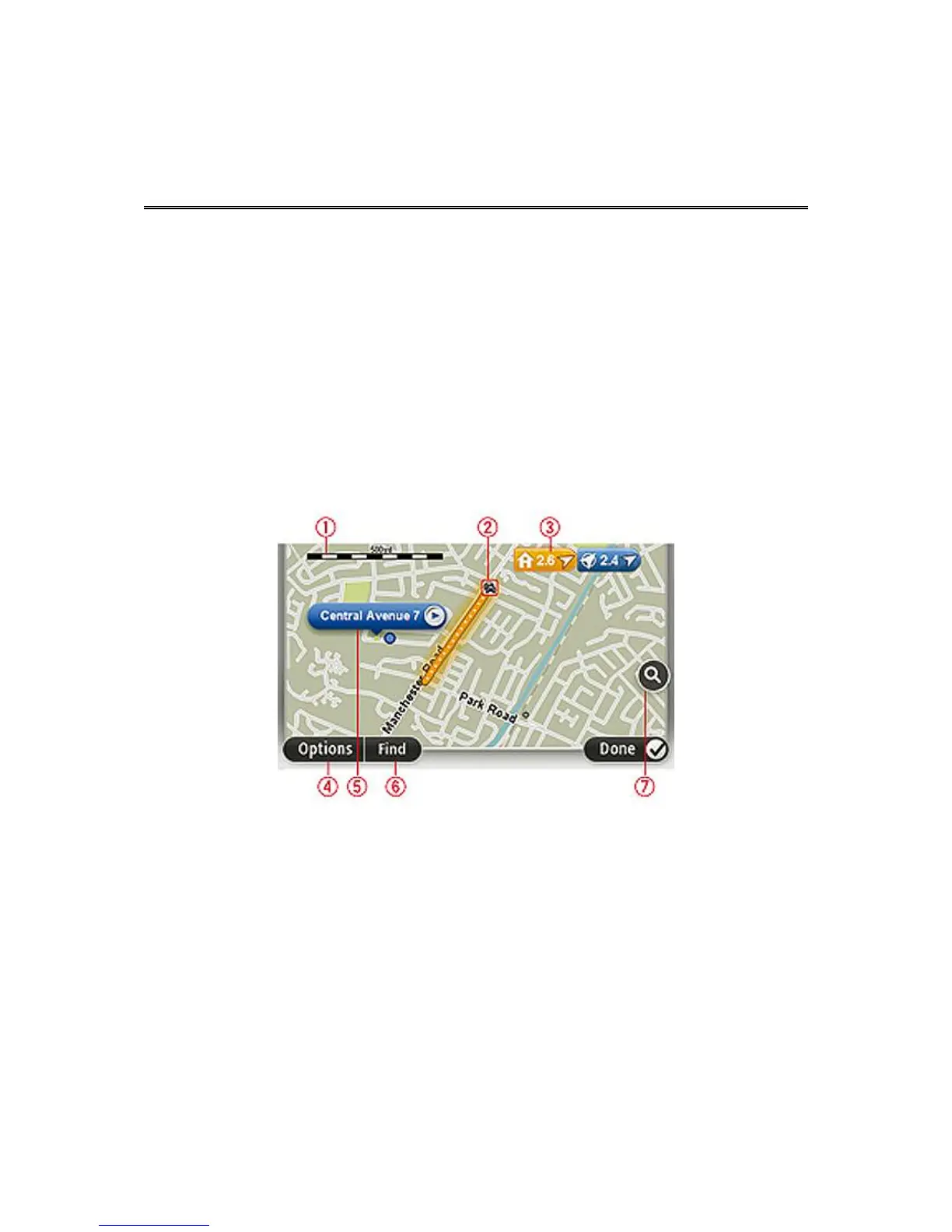
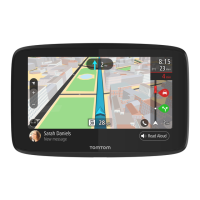
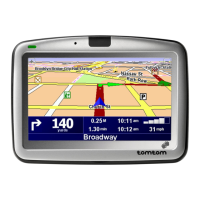
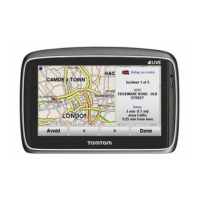
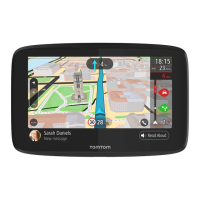
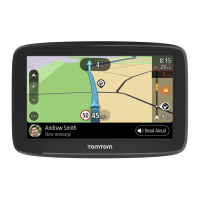
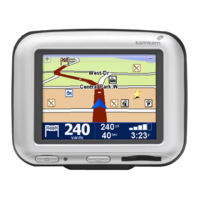
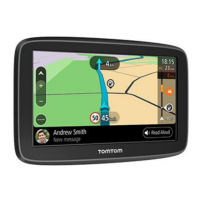
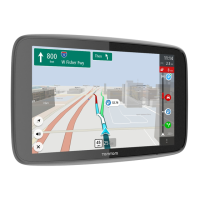
You can view the map in the same way as you might look at a traditional paper map. The map shows
your current location and many other locations such as Favorites and POIs.
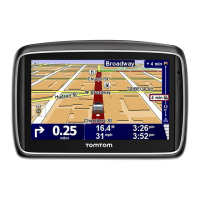
To view the map in this way, tap View map or View route in the Main menu.
You view different locations on the map by moving the map across the screen. To move the map,
touch the screen and drag your finger across the screen.
To select a location on the map, tap the location on the map. The cursor highlights the location and
displays useful information about the location in an information panel. Tap the information panel to
create a Favorite or plan a route to that location.
View map
1. The scale bar
2. Traffic - current traffic incidents. Use the Options button to select whether traffic information is
shown on the map. When traffic information is shown on the map, POIs and Favorites are not
shown.
3. Marker
A marker shows the distance to a location. Markers are colored as follows:
Blue - points to your current location. This marker is gray if you lose your GPS signal.
Yellow - points to your home location.
Red - points to your destination.
Tap a marker to center the map on the location pointed to by the marker.Tap a marker to center
the map on the location pointed to by the marker.
You can also set your own marker. Tap the cursor button, then tap Set marker position to place a
green marker at the cursor position.



 To Next Page