To change the way your TomTom GO LIVE warns you about speed cameras,
tap the Alert settings button.
You can then set how close you want to be to a speed camera before you are
warned and what type of sound will be played.
For example, to change the sound that is played when you approach a fixed
speed camera, do the following:
1. Tap Services in the Main Menu.
2. Tap Speed Cameras.
3. Tap Alert settings.
A list of speed camera types is displayed. A speaker is shown next to the
speed camera types that have been set for an alert.
4. Tap Fixed cameras.
5. Tap NO to keep the fixed safety camera alerts.
6. Enter the time in seconds for when a warning is given before you reach a
camera. Then tap Next.
7. Tap the sound you want to be used for the warning.
Tips: To switch off warning sounds for a camera type, tap Silence in
step 7 above. You still see a warning in the Driving View if you switch off
the warning sound.
8. Tap Done to save your changes.
Safety camera symbols
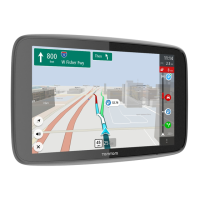
Speed Cameras are shown as symbols on the Driving View.
When you approach an area where an alert is located, you see a symbol and a warning sound is
played.
You can change both the warning sound and the number of seconds that the warning is issued before
reaching the alert.



 To Next Page