Need help?
Do you have a question about the Toshiba 22L1334G and is the answer not in the manual?
This document outlines the process for upgrading the software on a Toshiba TV receiver, ensuring optimal performance and access to the latest features. The upgrade involves a series of steps, from initial setup and USB drive insertion to navigating the TV's menu system and confirming the installation.
The primary function of this process is to update the TV's internal software, also known as firmware. Firmware is a type of software that provides low-level control for the device's specific hardware. Upgrading the firmware can introduce new features, improve existing functionalities, fix bugs, enhance security, and improve overall system stability and performance. This particular update is crucial for maintaining the TV's operational efficiency and ensuring compatibility with evolving broadcast standards and media formats.
The software upgrade process is designed to be user-friendly, guiding the user through each step. Before initiating the upgrade, it's important to note that personal and custom preferences, such as channel lists, picture settings, and sound configurations, will be lost. Therefore, users are advised to make a note of their preferred settings to reconfigure them after the update is complete.
The first step involves connecting the TV to an AC power source and turning it on. This ensures that the TV has a stable power supply throughout the upgrade process, preventing interruptions that could potentially damage the device.
Next, the USB drive containing the firmware update file needs to be inserted into the TV's USB slot. The USB slot is conveniently located on the left side of the cabinet, near the side control/jack assembly. Once the USB drive is inserted, the TV should automatically detect it and display a "Media Browser" information window. This window typically shows options like "Videos," "Photos," "Music," and "Settings," indicating that the TV has recognized the USB device. If this window does not appear, users are instructed to remove and reinsert the USB drive, ensuring a proper connection.
After confirming the USB drive's detection, the user needs to exit the "Media Browser" by pressing the "Menu" button on the remote controller. This prepares the TV for accessing the hidden service menu where the upgrade option resides.
To access the software upgrading menu, a specific sequence of buttons must be pressed on the remote controller: "MENU," "1," "5," "0," and "5." This sequence is a common method for accessing service or diagnostic menus on many electronic devices, allowing for advanced configurations and maintenance tasks.
Once the correct sequence is entered, the TV will display a prompt asking, "Do you want to update software?" Users must select "Yes" and press the "OK" button on the remote to initiate the upgrade.
The TV will then begin the software upgrading process, displaying a "Software upgrade" message, often accompanied by a progress indicator, such as "Downloading: 56 percent." During this critical phase, it is imperative not to remove power from the television or press any remote keys or buttons on the television. Any interruption during the download or installation could corrupt the firmware, rendering the TV inoperable. The process is fully automated once initiated, requiring no further user intervention until completion.
Upon successful completion of the software upgrade, the TV will automatically reboot. This reboot is a standard procedure to apply the new firmware and initialize the system with the updated software.
After the reboot, the USB drive can be safely removed from the reader slot.
The final steps involve reconfiguring the TV settings. Since personal preferences are reset, the TV will likely prompt for a "First time installation." To access this, users need to press the "MENU" button on the remote, navigate to "Install and Retune" using the "Left" or "Right" buttons, and then select "First time installation." Pressing "OK" will bring up a confirmation message asking, "Do you want to delete all channels and setting for first time installation?" Users should select "Yes" and press "OK."
The "First time installation" menu will then appear, typically starting with a language selection screen. Users should follow the on-screen instructions to select their preferred language and complete the initial setup, which usually includes scanning for channels and adjusting basic settings. Consulting the owner's manual for the first-time installation process is recommended for detailed guidance on these steps.
Once these steps are completed, the TV upgrade is officially finished, and the device will be running on the latest software version.
While the document primarily focuses on the upgrade process, it implicitly highlights several maintenance features:
In summary, this document provides a comprehensive guide for a critical software upgrade, emphasizing user-friendliness, clear instructions, and important precautions to ensure a successful and beneficial update for the Toshiba TV receiver.
 General
| Comb filter | 3D |
|---|---|
| Screen shape | Flat |
| Display diagonal | 22 \ |
| Display brightness | 250 cd/m² |
| Native aspect ratio | 16:9 |
| Native refresh rate | 50 Hz |
| LED backlighting type | Edge-LED |
| Supported video modes | 1080i, 1080p, 480i, 480p, 576i, 576p, 720i, 720p |
| Display diagonal (metric) | 55 cm |
| Viewing angle, horizontal | 130 ° |
| Supported graphics resolutions | 1280 x 720 (HD 720), 1920 x 1080 (HD 1080) |
| Motion interpolation technology | AMR (Active Motion Rate) 100 |
| Annual energy consumption | 56 kWh |
| Tuner type | Analog & digital |
| Channels quantity | 800 channels |
| Analog signal format system | NTSC, NTSC 4.43, PAL, PAL BG, PAL DK, SECAM, SECAM B/G, SECAM D/K, SECAM L |
| Digital signal format system | DVB, DVB-C, DVB-T |
| Audio system | Virtual Surround Sound |
| RMS rated power | 5 W |
| Number of speakers | 2 |
| DVI-D ports quantity | 0 |
| USB 2.0 ports quantity | USB 2.0 ports have a data transmission speed of 480 Mbps, and are backwards compatible with USB 1.1 ports. You can connect all kinds of peripheral devices to them. |
| Smart modes | Dynamic, Movie, PC |
| Control type | Buttons |
| On/off switch | - |
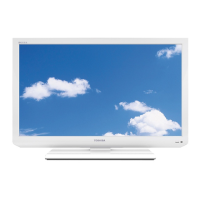
| Product color | White |
| Panel mounting interface | 75 x 75, 200 x 100 mm |
| Power consumption (max) | 65 W |
| Power consumption (standby) | 0.5 W |
| Power consumption (typical) | 38 W |
| Certification | RoHS |
| Package depth | 110 mm |
| Package width | 660 mm |
| Package height | 390 mm |
| Package weight | 7000 g |
| Cables included | Audio (3.5mm) |
 Weight and Dimensions
| Depth (with stand) | 163 mm |
|---|---|
| Height (with stand) | 358 mm |
| Weight (with stand) | 4700 g |
| Depth (without stand) | 22 mm |
| Width (without stand) | 518 mm |
| Height (without stand) | 321 mm |
| Weight (without stand) | 4000 g |


 To Next Page