English - 9 -
(**) Limited Models Only
TV Control & Operation (**)
The control switch allows you to control the Programme
and Quick Standby-On functions of the TV.
Note: The position of the control switch may dier depending
on the model.
To change channel in Live TV mode: Press the
centre of the control switch in, the information banner
will appear on the screen. Scroll through the stored
channels by pushing the control switch up or down.
To turn the TV o (Quick Standby): Press the centre
of the control switch in and hold it down for a few
seconds, the TV will turn into quick standby mode.
To turn the TV o (Standby): The TV cannot be
switched into standby mode via control switch.
To turn on the TV: Press the centre of the control
switch in, the TV will turn on.
Note: Live TV settings menu OSD in Live TV mode cannot be
displayed via control switch.
Operation with the Remote Control
Press the Menu button on your remote control to
display Live TV settings menu when in Live TV mode.
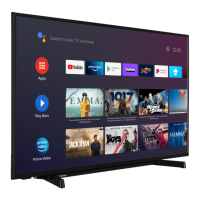
Press Home button to display or return to the Home
Screen of the Android TV. Use the directional buttons
to move the focus, proceed, adjust some settings and
press OK to make selections in order to make changes,
set your preferences, enter a sub-menu, launch an
application, etc. Press Back/Return to return to the
previous menu screen.
Input Selection
Once you have connected external systems to your
Source button on your remote control consecutively
or use the directional buttons and then press the OK
mode. Or enter the Inputs menu on the Home Screen,
select the desired source from the list and press OK.
Changing Channels and Volume
You can adjust the volume by using the Volume
+/- buttons and change the channel in Live TV mode
by using the Programme +/- buttons on the remote.
TV Control & Operation (**)
The control button allows you to control the Quick
Standby-On function of the TV.
Note: The position of the control button may dier depending
on the model.
To turn the TV o (Quick Standby): Press the control
button to turn the TV into quick standby mode.
To turn the TV o (Standby): The TV cannot be
switched into standby mode via control button.
To turn on the TV: Press the control button, the TV
will turn on.
Note: Live TV settings menu OSD in Live TV mode cannot be
displayed via the control button.
Operation with the Remote Control
Press the Menu button on your remote control to
display Live TV settings menu when in Live TV mode.
Press Home button to display or return to the Home
Screen of the Android TV. Use the directional buttons
to move the focus, proceed, adjust some settings and
press OK to make selections in order to make changes,
set your preferences, enter a sub-menu, launch an
application, etc. Press Back/Return to return to the
previous menu screen.
Input Selection
Once you have connected external systems to your
Source button on your remote control consecutively
or use the directional buttons and then press the OK
mode. Or enter the Inputs menu on the Home Screen,
select the desired source from the list and press OK.
Changing Channels and Volume
You can adjust the volume by using the Volume
+/- buttons and change the channel in Live TV mode
by using the Programme +/- buttons on the remote.


 To Next Page
 Loading...