Copyright © 2013 Toshiba
9
Box contents
BOX CONTENTS
Check to make sure you have the following:
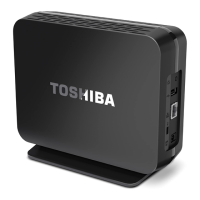
GET TO KNOW YOUR CANVIO
®
HOME
Feature Description
Power/in-use
indicator lights
5 lights (4 white, 1 amber) that indicate device status as follows:
v All lights flashing: Device is powering up and is not yet online.
v Single flashing white (bottom) light: Device is on and has gone into power-saving mode after a
period of inactivity.
v Single flashing amber (top) light: An error has occurred. Disconnect and reconnect both the
AC adapter and the Ethernet cable.
If the amber light continues flashing, contact Toshiba support. See
“Service and support” on page 47.
v One or more solid lights: The device is connected and working properly. The number of lights
displayed indicates how much device memory is free, as follows:
v Single (bottom) light: Over 70% of device memory is free.
v Two lights: 50–70% of device memory is free.
v Three lights: 30–50% of device memory is free.
v Four lights: 10–30% of device memory is free.
v All lights: Less than 10% of device memory is free.
Reset button
v
To reset your CANVIO
®
HOME, press and hold the button for 2 seconds, until the
device indicator lights flash.
A reset sets the device name and password back to the default
settings. It does not erase any data (photos, videos, music, etc.).
USB port
Insert a USB drive, or connect a USB cable (sold separately) to a printer.
Ethernet port
Connect the Ethernet cable to your network router.
Security cable slot
Connect a Kensington
®
security cable to lock your device to a desk or other object.
Power jack
Connect the AC adapter to a working outlet.
Quick Start Guide
Warranty
Power/in-use
indicator lights
USB port
Ethernet port
Power jack
Reset button
Security cable slot


 To Next Page
 Loading...