Connecting to a Computer
-61-
Setup
1
12 Click the [Exit] button.
13 Remove "Software DVD-ROM" from the
computer.
The installation is complete.
Print a test page to check that the printer
driver is successfully installed on the
computer.
1 Click [Start] > [Devices and Printers].
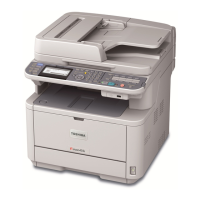
2 Right-click the TOSHIBA e-STUDIO403S
icon and select [Printer properties] (>
a desired printer driver if you have
installed multiple drivers) from the pop-
up menu.
3 On the [General] tab, click [Print Test
Page].
Installing a Printer Driver
(For Mac OS X)
Note
z Disable the anti-virus software before starting this
procedure.
For Mac OS X 10.5 to 10.7
1
Ensure that your machine and the
computer are turned on and connected.
Reference
z "Connecting a USB Cable" P. 59
2 Insert "Software DVD-ROM" into the
computer.
3 Double-click the [TOSHIBA] icon on the
desktop.
4 Double-click [Driver] folder > [PS] or
[PCL] folder [Installer for MacOSX].
5 Enter the administrator password, and
then click [OK].
Follow the instructions displayed on the screen to
complete the installation.
6 From the Apple menu, select [System
Preferences].
7 Click [Print & Scan] (Mac OS X 10.5 and
10.6:[Print & Fax]).
8 Click [+].
Note
z If the machine is already shown in [Printers], select
your machine, and click on [-] to delete. After this,
click [+].
9 Select the name of your machine whose
[Connection] is [USB], and then check
that [TOSHIBA e-STUDIO403S(PS)]
or [TOSHIBA e-STUDIO403S(PCL)] is
displayed in [Print Using].
10 Click [Add].
11 Check that the name of your machine is
displayed in [Printers] and [TOSHIBA
e-STUDIO403S(PS)] or [TOSHIBA
e-STUDIO403S(PCL)] is displayed.


 To Next Page
 Loading...



