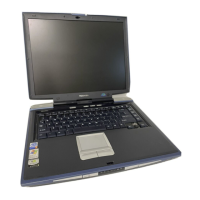
Finding Your Way around the System
Find Out Where Everything's Located
Part I: Getting To Know Your Computer
11
The 82-key
keyboard
provides all the functionality of a full-sized
101-key keyboard. For more information, see “How to Use the
Keyboard” on page 80.
The
AccuPoint buttons
work with the AccuPoint. The larger (pri-
mary) button acts as the left button on a mouse. The smaller (sec-
ondary) button acts as the right mouse button. For more
information, see “Using the AccuPoint Pointing Device” on
page 24.
The Indicator Panel
The indicator panel
The
power/speed light
glows when the computer is on and shows
the speed at which the computer is processing information. Green
indicates high speed and orange indicates low speed.
The
caps lock light
glows when you press the
Caps Lock
key.
When this light is on, pressing a letter key on the keyboard pro-
duces an upper-case (capital) letter. For more information, see
“The Character Keys” on page 80.
The
cursor control mode light
glows when the cursor control
overlay is on. When the overlay is on, pressing an overlay key
moves the cursor as shown by the white arrow printed on the left
front of the key instead of the letter printed on the top of the key.
For more information, see “The Cursor Control Overlay” on
page 207.
On
Power/speed light
Caps lock light
Cursor control mode light
Numeric mode light
Disk light
Battery light
Power light
On



 To Next Page
 Loading...