User’s Manual EN-19
Toshiba Thunderbolt™ 3 Dock
Connecting via the Thunderbolt™ 3 USB Type-C™ cable
Plug one end of the Thunderbolt™ 3 USB Type-C™ cable into the
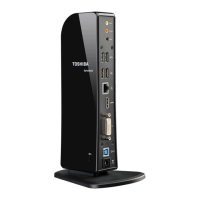
Thunderbolt™ 3/USB Type-C™ port on the back of the dock and plug the
other end into a computer which is powered on. The power delivery
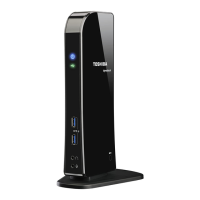
indicator on the front panel glows white when the computer is being
supplied power from the dock.
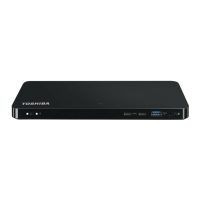
(Sample Illustration) Connecting the Thunderbolt™ 3 USB-C™ cable to the dock
Disconnecting/Undocking your computer
There are several ways to disconnect/undock your computer:
■ Directly unplug the USB Type-C™ cable from the computer.
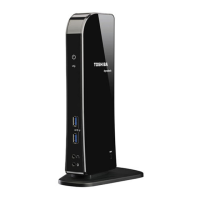
■ Press the power button to undock your computer.
■ HDMI™ and DisplayPort™ output on dock requires a computer with
DisplayPort™ over USB Type-C™ support. Please contact your
computer manufacturer for more information.
■ Some computers might not immediately recognize that the dock is
connected upon start-up. This is related to the computers BIOS start up
sequence. If this occurs, do the following:
1. Turn off the computer.
2. Disconnect the dock from the computer and wait approximately 30
seconds.
3. Turn the computer back on.
4. Connect the dock to the computer once the operating system of the
computer has loaded.
■ If a USB storage device is connected to the dock, make sure that you
save the data located on the USB device, and then remove the USB
device first before disconnecting/undocking.


 To Next Page
 Loading...