
 Need help?
Do you have a question about the TP-Link Deco X95 and is the answer not in the manual?
Explains the symbols and formatting used in the guide for clarity.
Details the LED status, Ethernet ports, and reset button on the Deco unit.
Download the Deco app and log in or sign up with a TP-Link ID.
Select location, set up internet connection type, and create Wi-Fi network name and password.
Connect devices to Wi-Fi and add more Deco units for wider coverage.
Instructions on how to add more Deco units to extend the mesh network.
View network status, access HomeShield features, and explore advanced options.
Check the working status, details, and location of Deco units.
View device details, manage settings, and create user profiles for devices.
Learn to create new Deco networks from the Overview or Menu pages.
Instructions for removing or rebooting Deco units via the Deco app.
Overview of HomeShield, its benefits, and key features like Scan and Parental Controls.
Change Wi-Fi name/password, enable guest network, and share network details.
Compile a deny list to prevent specified devices from accessing the network.
Guide on updating the Deco firmware to the latest version for optimal performance.
Configure WAN settings (IPv4/IPv6) and set up IPv6 firewall rules.
Adjust LAN IP settings to avoid conflicts and configure the DHCP server.
Enable IPTV/VLAN, MAC Clone, and register DDNS for network services.
Set up port forwarding rules and enable SIP ALG for communication.
Enable UPnP, Fast Roaming, Beamforming, and control LED lighting.
Change operating mode and configure connection and system notifications.
Use WPS for fast and secure connection of clients to the network.
Review weekly or monthly reports on usage, security threats, and device activity.
Add managers, set privileges, and manage user roles for network administration.
Find solutions to common setup and usage problems for Deco devices.
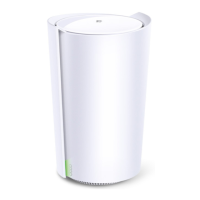
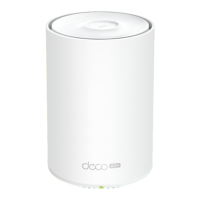
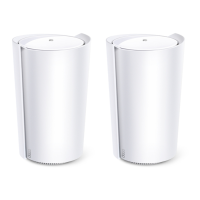
The TP-Link Deco X95 AX7800 Tri-Band Mesh Wi-Fi 6 System is a comprehensive whole-home mesh Wi-Fi solution designed to provide superior mesh Wi-Fi coverage everywhere. This system aims to deliver a seamless and robust internet experience throughout your home, leveraging Wi-Fi 6 technology for enhanced speed and efficiency.
The Deco X95 system functions as a whole-home mesh Wi-Fi network, meaning multiple Deco units work together to create a unified network under a single Wi-Fi name. This eliminates Wi-Fi dead zones and provides a consistent connection as you move around your home. Each Deco unit acts as a node in the mesh network, extending coverage and ensuring that all your devices stay connected to the strongest possible signal. The system utilizes AX7800 Tri-Band Wi-Fi 6, which implies it operates on three distinct Wi-Fi bands (one 2.4 GHz and two 5 GHz bands) to manage traffic efficiently and provide high-speed connections to multiple devices simultaneously. Wi-Fi 6 (802.11ax) technology brings improvements in speed, capacity, and efficiency, especially in environments with many connected devices. The Deco X95 is designed to replace your existing router and provide a complete Wi-Fi solution for your home. It supports various internet connection types, including Dynamic IP, PPPoE, Static IP, L2TP, PPTP, and DS-Lite, making it compatible with a wide range of internet service providers. The system also includes multiple Ethernet ports on each unit, allowing for wired connections to devices like computers, gaming consoles, or other internet-enabled equipment. One of the Ethernet ports on the main Deco unit is a 2.5Gbps port, while the others are 1Gbps, offering flexible connectivity options for high-speed devices.
Setting up and managing the Deco X95 system is primarily done through the intuitive Deco app, available for both Android and iOS devices. The app guides users through a straightforward setup process, starting with downloading the app, logging in or signing up with a TP-Link ID, and then connecting the main Deco unit to the modem. The app then assists in selecting a location for each Deco unit, configuring the internet connection type, and creating a Wi-Fi network name and password. Once the initial setup is complete, the Deco app provides a dashboard that offers an overview of the network status, including connected devices and their activity.
Adding more Deco units to expand Wi-Fi coverage is also simplified through the app. Users can select the Deco model they wish to add and follow the in-app instructions for integration into the existing mesh network. The app automatically detects and adds new Deco units within minutes.
The Deco app allows users to manage connected devices, providing details about each device and the ability to assign them to unique profiles. This feature is particularly useful for implementing parental controls and prioritizing network traffic for specific family members or devices.
The system supports the creation of multiple Deco networks under a single TP-Link ID, which can be useful for managing different networks for family or friends. Users can easily switch between networks or create new ones directly from the app's overview or menu page.
For network maintenance, the app offers features to remove or reboot individual Deco units. The LED indicator on each Deco unit provides visual feedback on its status, such as starting up, ready for setup, setting up, upgrading firmware, registered, disconnected from the main Deco, or having an issue. A Reset button on each unit allows for a factory default reset if needed.
The Deco X95 system incorporates several features to ensure optimal performance, security, and ease of maintenance.
HomeShield: This suite of features, accessible via the Deco app, enhances network security and management. HomeShield includes a Free Basic Plan, with a Pro Plan available for additional features. Key HomeShield features include:
Wi-Fi Settings: The app allows users to modify the main network's name and password, create a separate guest network for enhanced security and privacy, and easily share network details with family and friends using a "Shake to Share" feature.
Deny List: Users can compile a deny list to prevent specified devices from accessing the network, safeguarding personal information. This feature allows adding existing clients or manually entering MAC addresses for other devices.
Online Update: TP-Link is committed to providing better customer experience through firmware updates. The Deco app facilitates online updates, ensuring the system benefits from improved product features and more stable network performance. Users are prompted to update their Deco to the latest firmware version, and the app provides instructions for the update process, including troubleshooting tips for failed updates.
Advanced Features: The Advanced menu in the Deco app offers a range of sophisticated settings for network customization:
These features collectively ensure that the Deco X95 system is not only easy to set up and use but also provides robust security, flexible management, and continuous performance improvements through regular updates.
 General
| Ethernet WAN | Yes |
|---|---|
| Ethernet LAN (RJ-45) ports | 1 |
| Wi-Fi band | Tri-band (2.4 GHz / 5 GHz / 5 GHz) |
| Wi-Fi standards | 802.11a, 802.11b, 802.11g, Wi-Fi 4 (802.11n), Wi-Fi 5 (802.11ac) |
| Top Wi-Fi standard | Wi-Fi 6 (802.11ax) |
| Security algorithms | WPA, WPA2, WPA3 |
| Networking standards | IEEE 802.11a, IEEE 802.11ac, IEEE 802.11ax, IEEE 802.11b, IEEE 802.11g |
| WLAN data transfer rate (first band) | 574 Mbit/s |
| WLAN data transfer rate (third band) | 4804 Mbit/s |
| WLAN data transfer rate (second band) | 2402 Mbit/s |
| Antenna type | Internal |
| Product type | Mesh system |
| Certification | CE, FCC, RoHS |
| Product color | White |
| Transmit power | \u003C30 dBm(5 GHz), \u003C30 dBm(2.4 GHz) dBmW |
| Maximum coverage | 570 m² |
| Antennas quantity | 2 |
| Storage temperature (T-T) | -40 - 60 °C |
| Operating temperature (T-T) | 0 - 40 °C |
| Storage relative humidity (H-H) | 5 - 90 % |
| Operating relative humidity (H-H) | 10 - 90 % |
| Firewall security | SPI Firewall |
 Weight and Dimensions
| Depth | 123 mm |
|---|---|
| Width | 130 mm |
| Height | 210.5 mm |


 To Next Page