Restore
Defaults
Reset all settings to their factory defaults.
Cancel (default) / Con
fi
rm
Screen
Adjustment
Adjust the position of the recording screen.
Information
Display the DrivePro
’
s current
fi
rmware version, card capacity, WiFi
SSID, password, and model name/number.
5-2 Firmware Upgrade
1. After downloading the latest
fi
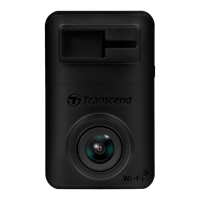
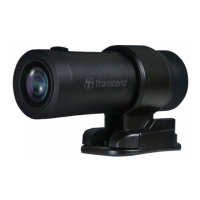
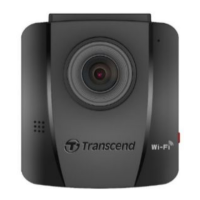
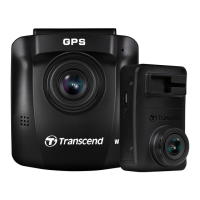
rmware for the front (DP250) and the rear (DP10) cameras from the
Transcend website, decompress the
fi
les and place them in the root directory of their respective
microSD memory cards. (Make sure not to store the
fi
rmware
fi
les within any folders.)
2. Insert the microSD memory card containing the latest
fi
rmware version into the card slot of the
DrivePro.
3. Connect the DrivePro to an external power outlet. The DrivePro will automatically detect the latest
fi
rmware
fi
le upon powering on, indicated by a
fl
ashing red light. The DrivePro will restart
automatically after the upgrade is completed.
"WARNING"
NEVER remove the microSD memory card or the power cord while the
fi
rmware is
being upgraded.
If the DrivePro cannot be turned on due to
fi
rmware upgrade failure, please contact Transcend
customer service for technical support.






 To Next Page