4-6 Using BIOS Setup and System Utility
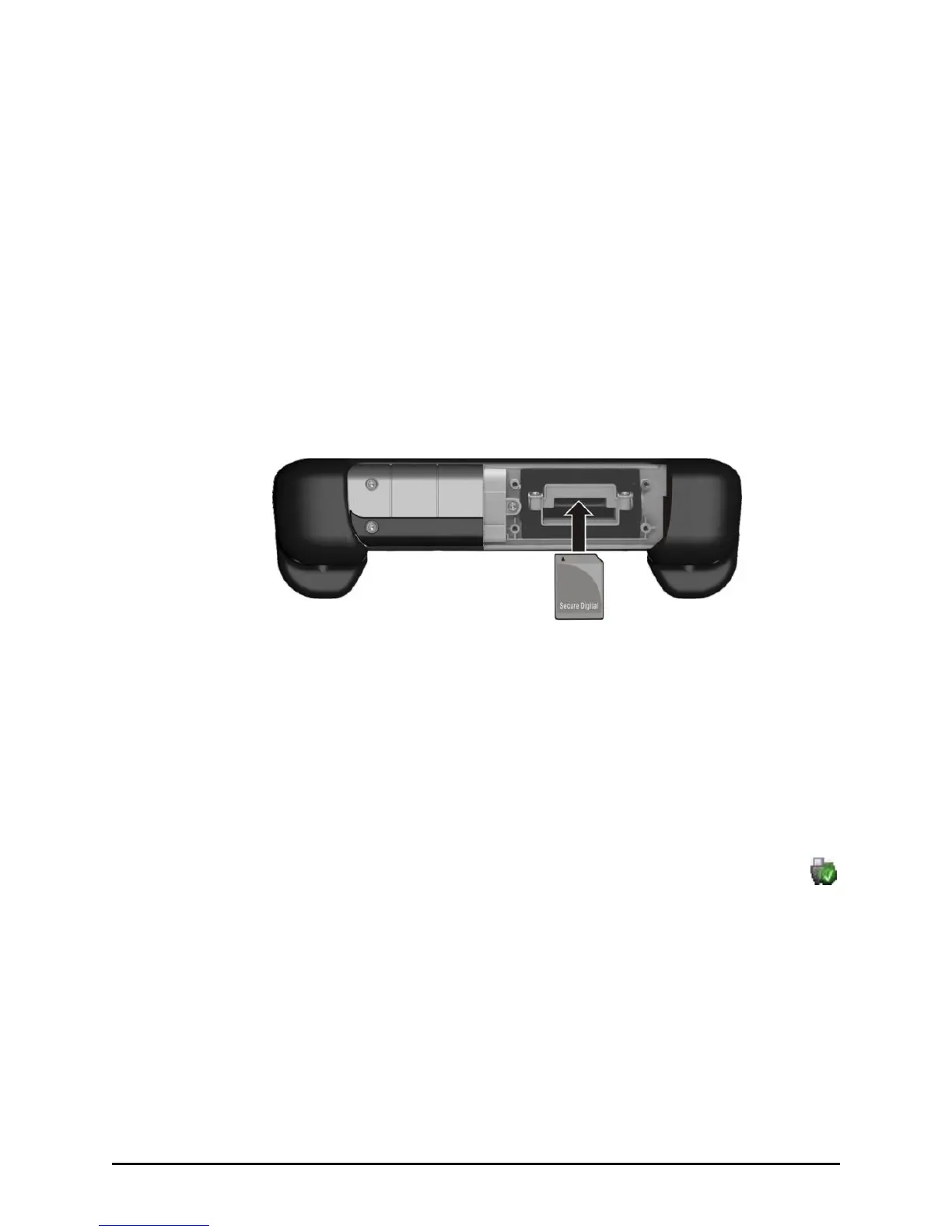
Using the SD Card Reader
Your tablet computer has a Secure Digital Input/Output (SDIO) Card
Reader slot.
To insert a SD card:
1. Remove the four screws securing the compartment cover.
2. Locate the SD Card Reader slot on the tablet computer.
3. Align the card with its connector pointing to the slot and its label
facing up. Slide the card into the slot until it reaches the end.
4. Windows will detect the card and assign it a drive name (typically E).
To remove a storage card:
1. Tap Start, then Computer.
2. Tap and hold the stylus on the drive with the card until the ring
appears, then lift up and select Safely Remove. You can also remove
the card by double-tapping on the Safely Remove Hardware icon
found in the Windows system tray. The Safely Remove Hardware
window will appear on screen.
3. Select (highlight) the SD Memory Card from the list and tap Stop to
disable the card.
4. Once it is safe to remove the card, push the SD Memory Card slightly
to release the card. Pull the card out of the slot.
5. Replace the compartment cover and secure with four screws.


 To Next Page
 Loading...