The Trust Smart Home ICS-2000 Octopus Control Station is a central hub designed to manage and configure a security system, allowing users to control and monitor their home security via a smartphone or tablet application. This system provides a comprehensive solution for home security, integrating various sensors and controls to offer peace of mind and remote management capabilities.
Function Description
The primary function of the ICS-2000 Octopus Control Station is to serve as the brain of a Trust Smart Home security system. It enables the connection and coordination of multiple security devices, including sirens, door/window sensors, motion sensors, and remote controls. Through the dedicated application, users can arm or disarm their security system, receive push notifications when an alarm is activated, and monitor the status of all connected devices.
The control station facilitates the initial setup and ongoing management of the security system. It allows users to add new sensors and remote controls, configure their settings, and delete devices as needed. The system provides real-time status updates, indicating whether the security system is armed, disarmed, undergoing sensor checks, or in an activation error state. This comprehensive feedback ensures users are always aware of their home's security status.
One of the key features is the ability to receive push notifications directly on a smartphone or tablet when an alarm is triggered. This immediate alert system ensures that users are promptly informed of any security breaches, allowing them to take appropriate action. The control station also supports a "walk-out time" feature, which provides a grace period after arming the system, allowing users to exit their premises without immediately triggering the alarm.
The system's connectivity relies on the user's Wi-Fi network, ensuring that the control station can communicate with the application and provide remote access. It is crucial for the smartphone/tablet to be connected to the same network as the ICS-2000 during the initial setup and for local control.
Usage Features
Setting up the ICS-2000 security system involves several intuitive steps through the smartphone/tablet application:
-
Preparation: Before connecting devices, ensure your smartphone or tablet is on the same Wi-Fi network as the ICS-2000. This can be verified in the app's settings, where connectivity should display as "local." If not, connect your device to the correct Wi-Fi network. For physical preparation, unscrew the siren cap, open contact sensors, and remove motion sensors from their holders. Keep a pin ready for pressing pairing buttons on the devices.
-
Connecting a New Security System:
- Access the "SECURITY" button in the app's menu bar.
- Press the "+" button at the top of the screen to add a new security system.
- A dialog will prompt you to put the siren into learning mode. For existing Trust Smart Home systems, first clear the siren's memory by pressing the learning button for 2 seconds (until the LED flashes), releasing it, pressing again for 6 seconds, releasing it, and then pressing briefly once more. The LED will flash 5 times to confirm deletion.
- Once the siren is in learning mode, press "CONNECT" in the app.
- The app will display "Pairing Siren," indicating the siren is being paired with the control station.
- After successful pairing, "Connected" will be displayed.
- A new dialog will appear, prompting you to add other devices. Select "Door/window sensor."
- Enter a name for the door/window sensor and press "ADD."
- Follow the on-screen instructions to put the door/window sensor into learning mode (typically by pressing its SET button for about 2 seconds).
- Press "CONNECT" in the app.
- Once connected, the app will confirm.
- Repeat the process for "Motion sensor," entering a name and pressing "ADD," then putting the sensor into learning mode and pressing "CONNECT."
- After adding all desired sensors, press "I'm done." The security system will then reconfigure itself, which may take 1-2 minutes.
-
Optional: Adding a Remote Control: While not mandatory, a remote control can be added. Follow the steps in the "Add a new sensor or remote" section.
-
Turning the Security System ON/OFF:
- Ensure the siren's anti-tamper switch is properly pressed and motion sensors are securely mounted.
- To arm the system, press the "ON" switch in the app or on the remote control. The switch will turn green, and the status will change to "Checking Sensors." After sensors are checked, the status will become "Walk-out time" for approximately 85 seconds, during which sensors will not trigger the alarm. After this period, the status will change to "ON," and the system will be active.
- To disarm the system, press the "OFF" switch in the app or on the remote control. The switch will close, and the status will change to "Security System disabled." All sensors will show an inactive icon, and the system will not respond to sensor triggers.
-
Adding a New Sensor or Remote:
- Press the "+" button in the security overview screen.
- Select the type of sensor or remote control you wish to add from the dialog box.
- Enter a name for the device and press "ADD."
- Follow the instructions in the next dialog to put the device into learning mode and then press "CONNECT."
- The security system will reconfigure after adding the device.
-
Deleting a Sensor or Remote:
- For iOS: Slide your finger from right to left over the sensor's name in the app to reveal the "Delete" option.
- For Android: Press and hold the sensor's name for 2 seconds.
- A dialog will appear asking for confirmation. Press "YES" to delete the device.
- The security system will reconfigure after deletion.
Maintenance Features
The ICS-2000 Octopus Control Station offers features to maintain the system's functionality and address common issues:
-
Updating the Security System:
- From the main menu, press the "SETTINGS" button.
- Select "UPDATE SECURITY SYSTEM."
- A dialog will ask for confirmation. Press "YES."
- The system will begin updating its security settings, which may take 2-3 minutes. This feature should only be used when advised by customer support.
-
Deleting the Security System:
- If you wish to start over with your security setup, you can delete the entire system.
- Go to "SETTINGS" and select "DELETE SECURITY SYSTEM."
- A confirmation dialog will appear. Press "YES."
- The system will delete all security devices and settings, which may take 1-2 minutes. Note that all sensors, remote controls, and the siren will need to be reset and reconnected after this operation.
-
Troubleshooting (FAQ):
- "Activation error" on motion sensor: Ensure the motion sensor is properly mounted in its wall holder. Push the holder into the holes and slide the sensor down until it clicks. Refer to the sensor's manual for detailed mounting instructions.
- "Activation error" on siren: Verify that the anti-tamper switch on the bottom of the siren is fully pressed and that the cap is screwed on tightly.
- Long configuration time: Check the app settings to ensure the connection mode displays "local state." If not, connect your smartphone/tablet to the same Wi-Fi network as the ICS-2000.
- Minimum system requirements: To use the security system with the ICS-2000, you need at least one siren and one sensor.
- Difficulty pairing/getting "TRY AGAIN": Follow the exact pairing steps provided by the app and ensure your app is in "local mode."
- Empty battery icon despite new batteries: Turn on your alarm system to refresh the battery status. If the issue persists, use high-capacity alkaline batteries (e.g., Duracell Ultra or Energizer Ultimate).
The ICS-2000 Octopus Control Station is designed for user-friendly operation and robust security management, providing an accessible way to keep your home safe and monitored.

 Need help?
 General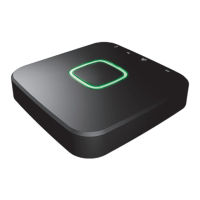

 To Next Page
