72 73
Installation – connection to computer
Also refer to the quick start guide “Installation“.
Download the ZIP le under “www.tunze.com - download - software - Multicontroller 7097“ and store it in a folder on
your computer.
Open the ZIP le, and unzip it into a separate folder.
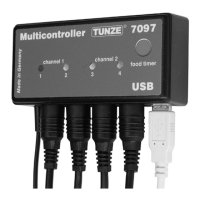
Connect the Multicontroller 7097 to the computer with the USB cable (an extension should only be performed with a
USB repeater/amplier), and the automatic search for a driver will start, but no driver will be found!
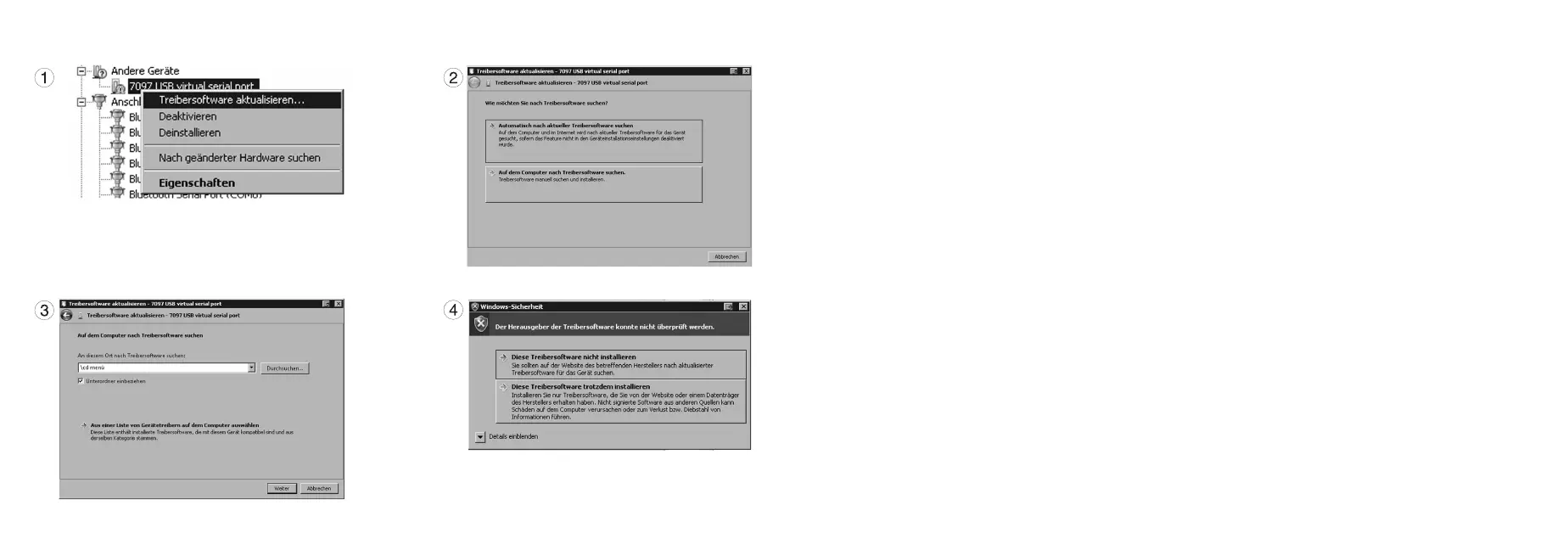
In the Device Manager (click on “Control Panel“, then “Device Manager“) a yellow exclamation point (1) will appear to
indicate that the driver is not installed!
(2) With the mouse, right click on “7097 USB virtual serial port“ and update driver software.
Use the search your computer for “Driver software” option.
(3) Conrm the unzipped folder as source for the driver installation, and conrm with next.
(4) The warning must be ignored by clicking on “Install this driver software anyway“.
This set up is only required for the initial use of the product.
Then, click on the folder “cd menu“ in the folder that was unzipped in the rst step, then on the folder “autorun“, and
there on “autorun.exe“.
The TUNZE
®
logo will appear.
Click on “install software“ and follow the subsequent installation routine.
The Multicontroller is now ready for use.


 To Next Page