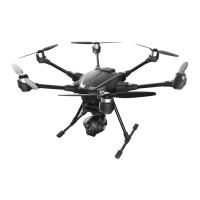
GUI INSTRUCTION
CAUTION: Remove all the propellers before using the GUI.
STEP 1)
Download the TYPHOON H GUI setup on our official website:
www.yuneec.com
STEP 2)
Unpack and install the file.
STEP 3)
Double click the icon [ ]
STEP 4)
Switch off the ST16 Ground Station. Power on the TYPHOON H
and use the USB cable to connect the aircraft and computer. The
interface will display the sensor information automatically, and you
will see all the data on the screen.
FUNCTION 1:
Speed Controller Status and Testing
STEP 1) Click the 'Enable Testing', then click 'I have removed the propellers,
and it's safe to enable motor testing', tap 'YES'.
STEP 2)
All the motors will turn red in the top right corner on the interface.
Move your mouse on the propeller which you want to spin, and click it,
then the motor will spin.
NOTICE:
If you hold and press it, the motor will spin continuously. You
can also click the 'ALL TURN' button to spin all the motors at the same
time.
19
FUNCTION 2:
Settings
The Geo-fence and Height limit can be redefined by adjusting the data
in the 'New Value' column, then you can write the new data in the flight
control by clicking the 'Update' button.
NOTICE:
Although the data can be changed by the pilot, we recom-
mend to keep the default settings.
FUNCTION 3:
GPS Information
You can check the Signal Strength and the Available Satellites by the
graph, and more detailed information below the graph.
FUNCTION 4:
Device Information
You can get the information about the GUI version, firmware and
Vehicle type and ID.
NOTICE:
When the aircraft is connected with the computer, you can't
switch off the aircraft.


 To Next Page
 Loading...