20
UniFi Controller User Guide
Ubiquiti Networks, Inc.
Chapter 3: Using the UniFi Controller Software
Alerts
When there is a new alert, an orange icon displaying the
number of new alerts appears.
The Alerts tab displays a list of important events,
along with the corresponding device icon, device name,
message, date, andtime.
Maximize/Minimize Click to maximize the screen size.
Click again to minimize the screen size.
Close Click to close the screen.
Show archived alerts Select this option to display all of
the archived alert messages.
Archive All Click Archive All to archives all of the alert
messages.
Search You can enter text that you want
to search for. Simply begin typing; there is no need to
press Enter.
Archive Click to archive the selected alert message.
Icons
The messages use the following icons (not all are shown
here):
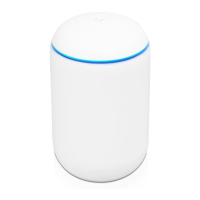
UniFi Security Gateway
UniFi Switch
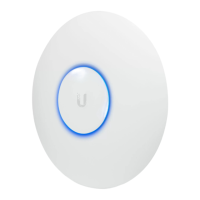
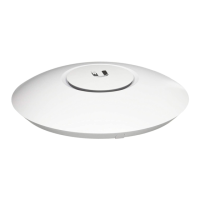
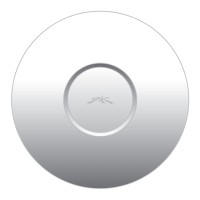
UniFi Access Point
UniFi VoIP Phone
Clicking an Alert Device Link
The messages have clickable links for client and UniFi
devices:
• “UniFi Security Gateway Details” on page 77
• “UniFi Switch Details” on page 85
• “UniFi Access Point Details” on page 95
• “UniFi VoIP Phone Details” on page 107
• “Client Details” on page 109
Settings
The Settings
tab displays a list of available sub-tabs:
• Site Site-related settings.
• Wireless Networks Wireless network and group setup,
including Zero Handoff Roaming.
• Networks Wired network setup.
• Guest Control Guest portal and policies.
• Admins Admin accounts and privileges.
• User Groups User group settings.
• Controller Identity, discovery, and email server settings.
• Cloud Access Cloud login credentials.
• Maintenance System configuration backup, system
configuration restore, and support files.
Settings > Site
Configure the site-specific settings. To switch sites, select a
different site from the Current Site drop-down menu at the
top of any screen.
Site Configuration
Site Name Change the name of the site.
Country Select the appropriate country.
Time Zone Select the appropriate time zone.
Services
Automatic Upgrade When enabled, the UniFi Controller
will automatically upgrade your firmware when an update
is available.
LED When enabled, the LEDs on the UniFi devices will
light up. When disabled, the LEDs will turn off.
Alerts Select this option to enable alert emails, which will
be sent to the email addresses of the administrators.
Speed Test (Beta) When enabled, you can run a periodic
speed test.



 To Next Page
 Loading...