7
Chapter 3: NavigationUniFi® VoIP Phone User Guide
Ubiquiti Networks, Inc.
The default home screen icons are:
Icon Description
Settings (UVP‑Executive only) Display and
configure the network, device, accounts, and
system settings. For detailed information, refer to
“Settings Screen” on page 11.
Phone Displays the Phone screen. Make a call
or view recent calls, contacts, and voicemail. For
detailed information, refer to “Phone Screen” on
page 25.
People (UVP and UVP‑Executive only) Press
to open the People app to create, view, and
maintain a list of contacts.
Camera (UVP‑Pro and UVP‑Executive only) Press
to access the camera. For detailed information,
refer to “Camera Screen” on page 29.
Apps Press to access the Apps screen. This
default icon is the only one that cannot be
removed from the Home screen.
Google Play™ Store Press to open the Google
Play™ store. Download apps, music, movies,
books, games, and other media. A new or existing
account is required for access.
or
Google Apps Folder Contains the Google suite
of apps including Gmail™, YouTube™, Chrome™,
Hangouts™, Google Drive™, GoogleMaps™, and
more.
Chapter 3: Navigation
The Home screen contains a Google
™
search widget,
default icons, and the three action baricons.
Google Search Widget
Use the Google search widget to type or speak voice
commands.
UVP, UVP-Pro Touch the bar to bring up a virtual
keyboard, or touch the microphone icon to say a voice
command.
Bar
Microphone
UVP-Executive Touch the g logo at the upper‑left corner
of the screen to bring up a virtual keyboard, or touch the
microphone icon to say a voice command.
g Logo
Microphone
Default Home Screen Icons
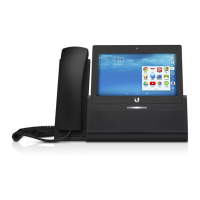
The home screen icons appear at the bottom of the home
screen (UVP and UVP‑Pro) or the right side of the home
screen (UVP‑Executive).


 To Next Page
 Loading...