3
If you the remove card reader before it’s safe to do so, you could
experience lost or corrupted data on your memory card.
For MacOS
A. Close any open windows that list the contents of the card reader.
B. On the desktop, click and drag the USB storage icon to the trash
icon.
C. Wait ten seconds and remove the reader.If you remove card
reader before it’s safe to do so, you could experience lost or
corrupted data on your memory card.
FAQ
Q: What do you do if the card reader not being detected by PC?
A: Always plug in the card reader before connects to your computer.
Also the files are in exFAT or FAT format and not in NTFS format.
Q: Why my CFast card cannot be read or write by PC?
A: Unplugged all memory cards and disconnect the PC and plug it
again.
Q: How to solved the “You need to format the disk in drive” error
message
A: Make sure your memory device is plugged directly into the USB
port on the PC and backup all your data before formatting.
For PC
A) Double click My computer, or computer
B) Right click the drive letter associated with your memory device
then select Format.
C) Select a file system type FAT format and confirmed For MAC.
A) Double click on Macintosh HD or in the finder menu click File >
New
B) Click the Applications folder.
C) Click the Utility folder.
D) Double click Disk Utility.
E) Select the capacity of the drive respective to the one containing
the device you wish to format then click the Erase tab.
F)Verify Volume Format is set to MS-DOS or exFAT, Scheme is set to
Master Boot Record then click Erase.
Warranty
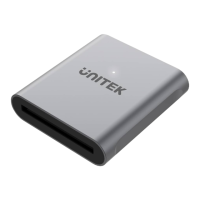
The Unitek CFast Card Reader is covered by Unitek warranty for 24
months. If the card reader fails due to manufacturer defects, please
contact us by email at support_us@unitek-products.com.


 To Next Page
 Loading...