Product Operation
App Connection
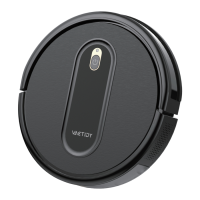
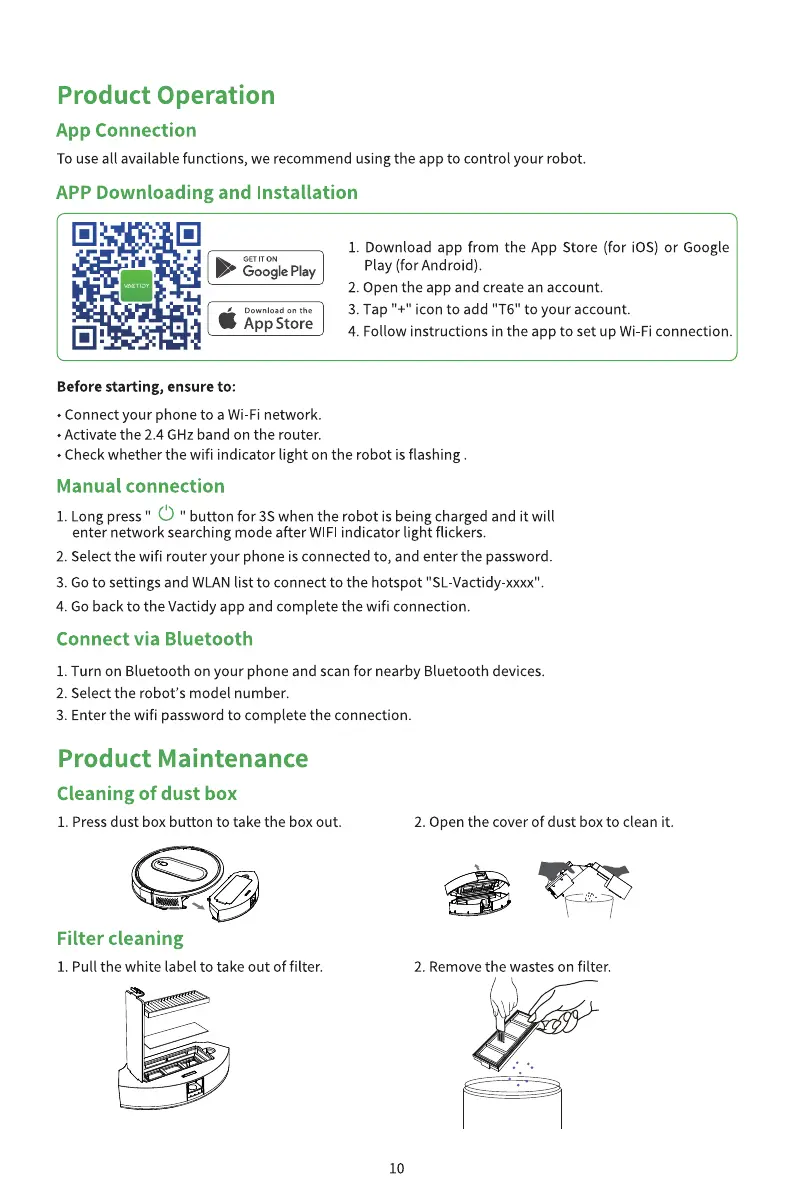
To use all available functions, we recommend using the app to control your robot.
APP Downloading and Installation
GET ON
Google Play
Download on the
AppStore
Before starting, ensure to:
• Connect your phone to a Wi-Fi network.
• Activate the 2.4 GHz band on the router.
Download app from the App Store (for iOS) or Google
I.
Play (for Android).
2. Open the app and create an account.
3. Tap "+" icon to add "T6" to your account.
4. Follow instructions in the app to set up Wi-Fi connection.
• Checkwhether the wifi indicator light on the robot is flashing .
Manual connection
C)
1. Long press " ' button for 3S when the robot is being charged and it will
enter network searching mode after WIFI indicator light flickers.
2. Select the wifi router your phone is connected to, and enter the password.
3. Go to settings and WLAN list to connect to the hotspot "SL-Vactidy xxxx".
4. Go back to the Vactidy app and complete the wifi connection.
Connect via Bluetooth
I. Turn on Bluetooth on your phone and scan for nearby Bluetooth devices.
2. Select the robot's model number.
3. Enter the wifi password to complete the connection.
Product Maintenance
Cleaning of dust box
I. Press dust box button to take the box out.
Filter cleaning
I. Pull the white label to take out of filter.
2. Open the cover of dust box to clean it.
2. Remove the wastes on filter.
10


 To Next Page
 Loading...