CAMCOLI6
V. 02 – 11/04/2014 5 ©Velleman nv
6.4 Connecting to the Camera
The camera generates a Wi-Fi hotspot that allows the image transfer to your mobile device. You have to connect your
mobile device to the hotspot to see live camera images, record a video, take a snapshot, and change settings.
Playback/deletion of recorded videos is also available when your mobile device is not connected to the hotspot.
Note: while your mobile device is connected to the hotspot, it has no internet connection.
Connecting to an iOS Device
To connect your iOS device to the camera, proceed as follows:
1. Switch on the camera: turn the thumbwheel [5] until you hear a click.
The camera goes through a start-up process and creates a Wi-Fi hotspot. This takes about 40 seconds.
2. Wait until the LED starts flashing slowly (1 time/second = the hotspot is ready).
3. On your iOS device, open Settings >Wi-Fi and set Wi-Fi to ON.
4. In the list of available networks, select iSnakescope.
Note: it may take a minute or longer for the Wi-Fi hotspot to appear in the list.
The first time that you try to connect, you have to enter the Wi-Fi password.
5. Enter the Wi-Fi password (the default password is 12345678) and tap Join.
6. Wait until the connection is established. The green LED on the camera flashes quickly (2 times/second) and a
checkmark appears next to the iSnakescope network name.
7. Exit Settings.
Connecting to an Android Device
To connect your Android device to the camera, proceed as follows:
1. Switch on the camera: turn the thumbwheel [5] until you hear a click.
The camera goes through a start-up process and creates a Wi-Fi hotspot. This takes about 40 seconds.
2. Wait until the LED starts flashing slowly (1 time/second = the hotspot is ready).
3. On your Android device, open Menu > System Settings and set Wi-Fi to ON.
4. In the list of available networks, select iSnakescope.
Note: it may take a minute or longer for the Wi-Fi hotspot to appear in the list.
The first time that you try to connect, you have to enter the Wi-Fi password.
5. Enter the Wi-Fi password (the default password is 12345678) and tap Connect.
6. Wait until the message "Connected" appears on the screen. The green LED on the camera flashes quickly
(2 times/second).
7. Exit the menu.
7. Using the App on an iOS Device
7.1 Live Images, Videos, and Snapshots
Viewing Live Images
To view live images, proceed as follows:
1. Make sure that the camera is switched on and your iOS device is connected to the iSnakescope Wi-Fi hotspot.
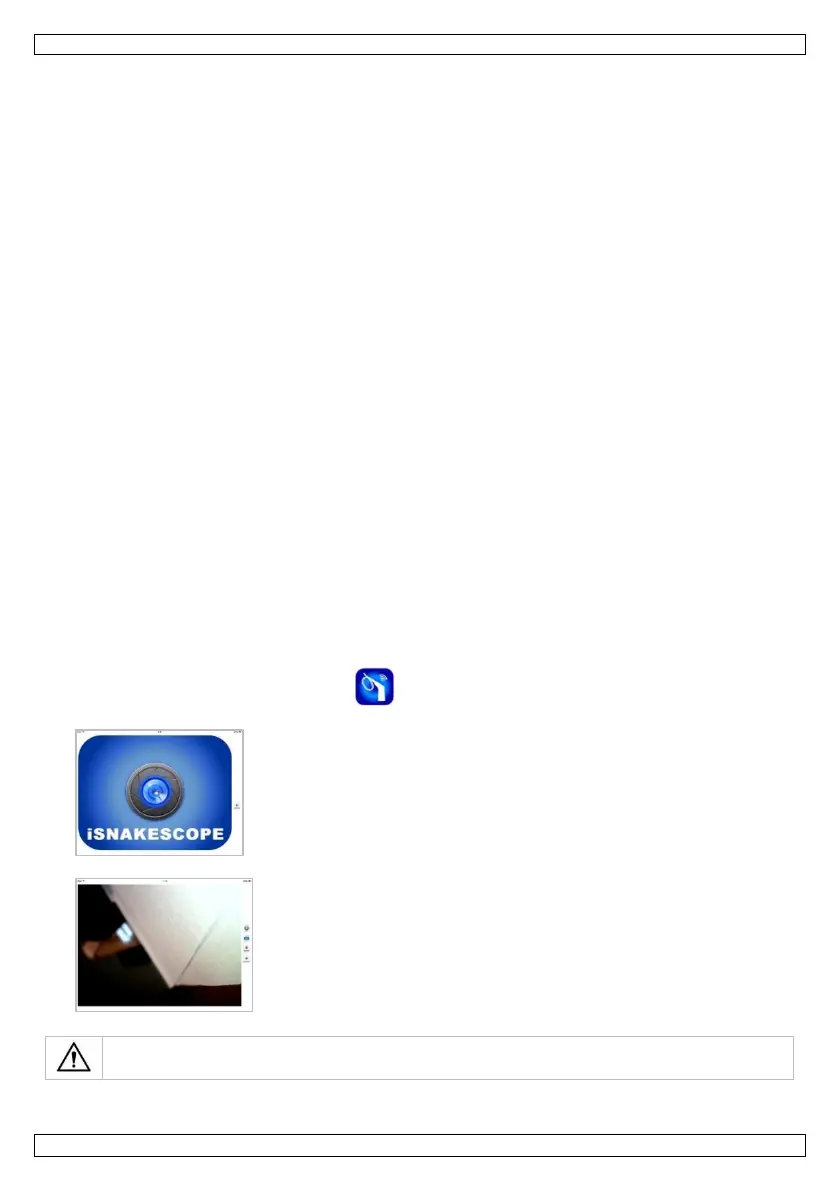
2. On your iOS device, tap the iSnakescope icon to open the iSnakescope app.
The app's splash screen appears:
After a few seconds the live image of the camera and the control buttons appear on the screen:
You are now ready to use the camera.
Never insert the camera in energised/operational machines or equipment.


 To Next Page
 Loading...