28 VELUX
Creating a Group
Menu
Locate
P1
P2
Enter Back
P1
P2
Enter Back
P1
P2
To make it easier to locate and operate products of the
same type simultaneously, you can create a Group.
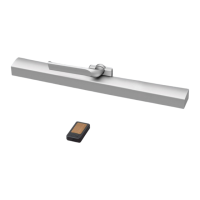
The example shows a room with four
skylights, each with a skylight operator.
It is shown how to create Group 1 consist-
ing of the skylight operators on the two
skylights No. 3 and No. 4 (indicated as
"Window" in the remote display). The
example presupposes that Room 1 has
been created.
Note: When Room 1 was created, a number of Groups "All"
was created automatically - each consisting of all products
of the same type in the Room in question, see section
Room, Group and Zone.
A Group created across more Rooms is shown in the
display as a Zone.
1
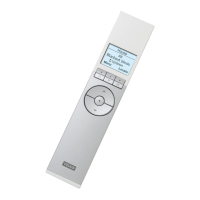
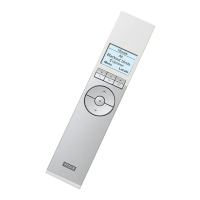
Press "Menu".
2
Scroll through the menus:
3
Displays a list of the Rooms created.
Press to highlight the Room in which to create Group 1.
Press "Enter" to confirm your choice.
4
Displays a list of the product types in Room 1.
To choose the product type skylight operator, press to
highlight "Window".
Press "Enter" to confirm your choice.



 To Next Page
 Loading...