The Skyfan DC App WiFi Control Module (Model No.: SKYAPPCM) is an accessory designed to enable smart control of Skyfan DC ceiling fans via a mobile application. This module allows users to manage their Skyfan DC ceiling fans remotely using either the "Tuya Smart" app or the "Smartlife App" on their iOS or Android devices.
Function Description:
The primary function of the SKYAPPCM module is to provide Wi-Fi connectivity to Skyfan DC ceiling fans, allowing for remote control and automation through a smartphone application. Once installed and paired, users can control various fan functions from their mobile device, including power on/off, fan speed adjustment, direction (forward/reverse), mode selection (Normal, ECO, Sleep), and timer settings.
Installation and Setup:
- Module Insertion: The installation process begins by removing an orange rubber cover from the app control slot on the Skyfan receiver box. The SKYAPPCM module is then inserted into this slot.
- Fan Installation (if not already installed): For new installations, the Skyfan DC ceiling fan must be installed by a licensed and qualified tradesperson.
- Module Insertion (for existing fans): If the fan is already installed, the main power supply must be turned off. The fan's upper canopy is removed by twisting it in a clockwise direction and lowering it to expose the receiver box. The app control module is then inserted. This step can be completed without removing the receiver but should still be performed by a licensed and qualified tradesperson. After insertion, the canopy is replaced by sliding it upward and twisting it anti-clockwise to re-fix it.
- App Download: Users need to download either the "Tuya Smart" app or the "Smartlife App" from the Apple App Store (for iOS) or Google Play (for Android). QR codes are provided in the manual for easy access to the app downloads.
- Account Registration: Users must register or sign up for a Tuya smart account using either a mobile phone number or an email address.
- Wi-Fi Connection: Ensure the mobile phone's Wi-Fi is turned on and that the fan is within the same Wi-Fi area.
- Add Device: Open the Tuya Smart App and select 'add device'.
- Select Device Type: Choose 'Small Home Appliances' and then 'Fan'.
- Wi-Fi Network Selection: Select a 2.4GHz Wi-Fi network and enter the password. If the user's Wi-Fi is 5GHz, a 2.4GHz version should also be available as an option. The module requires a 2.4GHz connection.
- Fan Reset and Pairing:
- Ensure the fan's remote control is set to 'OFF' for both fan and light (if applicable).
- Turn the isolation switch (located on the wall in the same room as the fan) to 'ON'. The fan will emit one beep (and the light will turn on for 'with light' models).
- Within 10 seconds, press and hold the 'TIMER' BUTTON on the fan remote for 3-5 seconds.
- For 'without light' models, the fan will emit a "beep-beep" sound, indicating it's ready for pairing.
- For 'with light' models, the light will flash, indicating it's ready for pairing.
- In the app, select 'confirm indicator rapidly blink' and then 'NEXT' to begin the pairing procedure.
- The pairing process must be completed within 3 minutes of resetting the device.
- Device Added: Once successfully paired, the Skyfan DC fan will be added to the Tuya Smart account. If pairing fails, repeat steps 8 to 10.
Usage Features:
Once the module is successfully paired, users can control their Skyfan DC fan through the app's interface.
- Home Screen Controls: The app's home screen provides basic controls such as Power On/Off, Fan Speed adjustment, Light On/Off, and Brightness control (for models with lights).
- Main Control Panel: Clicking on the fan icon in the app accesses the main control panel, offering a comprehensive list of functions:
- Power On/Off: Toggle the fan's power.
- Fan Speed: Adjust the fan speed using a slider or predefined levels.
- Direction: Change the fan's rotation direction (Forward/Reverse).
- Mode: Select different operating modes (Normal, ECO, Sleep).
- Timer: Set a timer for the fan to operate for a specified duration.
Important Notes:
- The installation of the fan and module should be carried out by a licensed and qualified tradesperson.
- The module requires a 2.4GHz Wi-Fi network for connection.
- The pairing process has a time limit of 3 minutes after the device reset.
- The module is compatible with both the "Tuya Smart" and "Smartlife App" platforms.
- Model No.: SKYAPPCM
- Compatibility: Skyfan DC ceiling fans
- Connectivity: Wi-Fi (2.4GHz)
- App Compatibility: Tuya Smart app, Smartlife App
- Supported Devices: iOS, Android
Maintenance Features:
The manual does not explicitly detail maintenance features for the SKYAPPCM module itself. However, as an electronic component, it is generally expected to be maintenance-free under normal operating conditions. Any issues related to connectivity or functionality would likely be addressed through app troubleshooting or, if necessary, by a qualified technician. The fan itself would require standard cleaning and maintenance as per its own manual.
- Brand: Ventair
- Address: 4 Capital Place, Carrum Downs, Victoria, 3201
- Technical Support Ph: 1300 665 926
- Email: info@ventair.com.au
- Website: www.ventair.com.au
- Revision: 1.0
Ventair reserves the right to alter technical specifications without prior warning.

 Need help?
 General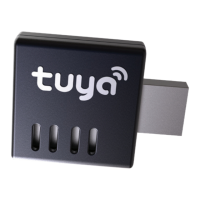

 To Next Page