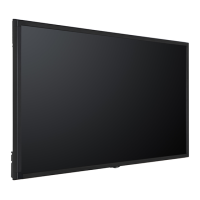
This document outlines the installation and maintenance procedures for a video wall system.
Function Description
The device is a video wall system designed for displaying content across multiple panels, creating a larger, unified display. It supports configurations such as a 3x3 video wall, allowing for scalable display solutions. The system includes wall mounts for secure installation and features for both mechanical and software adjustments to ensure precise alignment and optimal display performance. It also incorporates a maintenance mode for easy access and removal of individual panels.
Important Technical Specifications
The manual provides dimensions for different panel sizes when used in a video wall configuration:
- 55" Video Wall Horizontal Dimension: 1215.3 mm
- 55" Video Wall Vertical Dimension: 686.5 mm
- 47" Video Wall Horizontal Dimension: 1046.8 mm
- 47" Video Wall Vertical Dimension: 591.6 mm
- 46" Video Wall Horizontal Dimension: 1025.65 mm
- 46" Video Wall Vertical Dimension: 579.84 mm
The system uses M8 screws for mounting Unit A to the video wall panel. Power input is 220 V AC. Connectivity options include HDMI-IN, HDMI-OUT, Display Port In, Display Port Out, VGA, DVI, LAN, IR Input, and RS232-OUT/RJ12-IN for daisy chain communication. There is also an internal USB port.
Usage Features
Installation Process:
- Video Wall Package: The package includes the video wall panel and wall mounts.
- Wall Mounts: Two types of wall mounts are provided:
- Unit A: Installed on the back side of the video wall panels.
- Unit B: Installed on the wall or metal construction.
- Mounting Unit A: Unit A is secured to the back of each video wall panel using four M8 screws.
- Mounting Unit B: Unit B is mounted to the wall or metal construction. The manual highlights recommended screw holes for this step.
- Mounting Panel + Unit A to Unit B: The video wall panel with Unit A attached is then mounted onto Unit B, which is already fixed to the wall.
- Sample Installation (3x3): For a 3x3 configuration, all nine wall mount Unit B components should be mounted first, followed by the panels. Mounting of panels should start from the top row.
- Cable Connections:
- HDMI/DP Video Signal: Video input via HDMI is distributed to each panel. HDMI-OUT from one panel connects to HDMI-IN of the next in a daisy chain configuration. DisplayPort cables are also used for video signal transfer.
- RS232 Communication: RS232 cables are used for daisy chain communication between panels, connecting RS232-OUT to RJ12-IN. An IR extender and PC connection are also shown.
- Power Cables: Power cables connect from a power box (220 V AC) to each unit.
- Mechanical Adjustment: After mounting, panels can be adjusted for depth, horizontal, and vertical alignment.
- Reference Panel: The installation process involves adjusting a reference panel parallel to the ground.
- Bottom Line Adjustment: The horizontal, depth, and vertical positions of panels in the bottom line are adjusted relative to the reference panel.
- Right Vertical Line Adjustment: The horizontal, vertical, and depth positions of panels in the right vertical line are adjusted relative to the reference panel.
- System Adjustment: The rest of the system is then adjusted based on the bottom and right lines.
- Software Adjustment:
- Access the menu: MENU > SETTINGS > OTHER SETTINGS > VIDEO WALL SETTINGS.
- Set Row Count (e.g., 3 for a 3-row setup).
- Set Column Count (e.g., 3 for a 3-column setup).
- Set Cell (the specific screen number within the grid). This allows the system to correctly identify and position each panel in the video wall layout.
Maintenance Features
Maintenance Mode: After mounting, panels should be set to maintenance mode. This allows individual panels to be pulled forward from the wall for servicing without disturbing adjacent panels.
Removing a Specified Screen from the System (Example for Panel 5 in a 3x3 setup):
- Shift Panels: Panels 3 and 6 (to the right of panel 5) move to the right. Panels 1 and 4 (to the left of panel 5) move to the left. This creates space around the target panel.
- Activate Maintenance Mode: Panel 2 (the panel directly above panel 5) must be set to maintenance mode, allowing it to tilt forward.
- Remove Panel: The specified panel (Panel 5) can then be removed from the system. This process demonstrates the modularity and ease of access for individual panel maintenance or replacement.

 Need help?

 To Next Page
 General