• House loads in Marine or Vehicle system.
• PWM solar chargers
• AC chargers, such as Skylla-is, Phoenix Smart IP43 chargers, non Victron chargers, etc.
• Alternators
• DC-DC chargers
• Wind turbines
• Hydro turbines
In case a battery with built-in monitor is used, such as explained in (3), then that is the dedicated battery monitor. Refer to
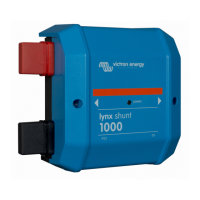
section (3). Otherwise install a BMV, SmartShunt or Lynx Shunt VE.Can.
Configuration:
1. Configure the battery monitor as per its documentation.
2. In the CCGX, in Settings → System setup, verify the selected battery monitor.
3. It should be the BMV, SmartShunt, Lynx Smart BMS or Lynx Shunt battery monitor.
4. Finished.
Note that the battery monitor setting in VEConfigure is irrelevant. For systems like this, changing this
setting will have no effect on the charge or any other parameters in this type of system.
8.2.3. Notes on SoC
• Note that this is all about showing an accurate state of charge to the user, rather than being required for an efficient system.
The SoC percentage is not used for battery charging. It is, however, required when a generator needs to be started and
stopped automatically based on battery SoC.
More information:
VRM Portal FAQ - difference between BMV SOC and VE.Bus SOC
See Configurable Parameters Section [37] on Battery monitor selection and Has DC system.
8.2.4. Selecting SoC source
(Settings → System Setup → Battery monitor)
In the image above you can see a range of selectable choices for the SoC values which are shown in the main Overview screen.
Choose the source you want to see on the main Overview screen of your CCGX.
In the same image we have chosen the Automatic setting. When automatic is selected, the System setup screen will be as shown
in the image below.
Color Control GX Manual
Page 45 Configuration



 To Next Page
 Loading...