As of Raymarine LightHouse v3.15, there is an option to toggle DHCP. Disabling this option does not mean
that the Axiom MFD will work with third party network routers. See this post on Victron Community for more
information.
13.3.4. GX device configuration
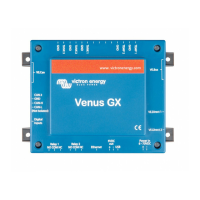
1. On the Victron GX device, go to Settings → Services, and there enable both MQTT on LAN (SSL) and MQTT
on LAN (Plaintext).
2.
Next, go to Menu → Settings → System Setup → Battery Measurements, and there set up what batteries you want to see on
the MFD; and by what name.
3. For boats, RVs and other applications with DC loads such as lighting and a Battery Monitor installed, make sure to enable the
“Has DC system setting”. For more information about it, see the Menu structure and configurable parameters [37] chapter.
No other settings such as IP addresses or similar are required, since the Axiom MFDs have an integrated DHCP server.
13.3.5. Configuring multiple battery measurements
This video explains how to set up multiple battery measurements and how to name them.
13.3.6. Installation step-by-step
1. Connect the RayNet adapter cable to the MFD
2. Connect the RJ45 end of the RayNet adapter cable to the Ethernet port of the GX device
3. On the MFD go to Apps and then select the Victron logo
Color Control GX Manual
Page 75 Marine MFD integration by App



 To Next Page
 Loading...