This document describes the Victsing Wireless Keyboard and Mouse, model PC252A. It provides instructions for setup, usage, and troubleshooting, along with important compliance information.
Function Description:
The Victsing PC252A is a wireless keyboard and mouse combo designed for general computer use. It operates wirelessly via a USB receiver, allowing for a clutter-free workspace. The keyboard features both standard typing keys and a set of combined multimedia functions, while the mouse provides basic navigation and interaction. The system is designed for ease of use, with automatic driver installation upon plugging in the USB receiver.
Important Technical Specifications:
- Model: PC252A
- Connectivity: Wireless, via USB receiver
- Keyboard Power: 2 x 1.5V AAA dry cells
- Mouse Power: 1 x 1.5V AA dry cell
- Operating System Compatibility: The keyboard's multimedia functions are not available in Mac OS.
- Wireless Range: The distance between the receiver and keyboard should be kept within 30cm during code pairing.
- FCC Compliance: The device complies with part 15 of the FCC Rules, ensuring it does not cause harmful interference and accepts any interference received. It is also evaluated to meet general RF exposure requirements for portable use without restriction.
Usage Features:
- Easy Setup:
- Remove the keyboard and mouse from the package.
- Locate the USB receiver, which is stored in the mouse's battery compartment.
- Insert two 1.5V AAA dry cells into the keyboard, ensuring correct polarity, and turn on its switch.
- Insert one 1.5V AA dry cell into the mouse, ensuring correct polarity.
- Plug the USB receiver into a computer port.
- The devices should be ready for use automatically after the computer installs the necessary drivers.
- Combined Multimedia Functions (Keyboard): These functions are accessed by pressing the "Fn" key in combination with the F1-F12 keys.
- Fn+F1: Player
- Fn+F2: Volume-
- Fn+F3: Volume+
- Fn+F4: Mute
- Fn+F5: Previous Track
- Fn+F6: Next Track
- Fn+F7: Play/Pause
- Fn+F8: Stop
- Fn+F9: Homepage
- Fn+F10: Email
- Fn+F11: My Computer
- Fn+F12: Favorites
- Independent Multimedia Buttons (Keyboard): Dedicated buttons are available for:
- Search
- Refresh
- Calculator
- Hibernate
- Code Pairing (Troubleshooting):
- Mouse: If the mouse is not working, remove and re-install the battery. Then, simultaneously press the left button, scroll wheel, and right button for over 3 seconds to enter code pairing mode. Unplug and replug the USB receiver, then move the mouse within 20 seconds. A successful pairing is indicated by normal operation.
- Keyboard: If the keyboard is not working, ensure the switch is on and batteries are installed. Simultaneously press "(esc)" and "+" buttons for over 3 seconds. The indicator light will stay on, signaling code pairing mode. Plug the USB receiver into a computer port, keeping the keyboard within 30cm of the receiver. The indicator light will turn off upon successful pairing.
Maintenance Features:
- Battery Management: For better maintenance and to prolong battery life, it is recommended to remove the batteries from both the keyboard and mouse if the products will not be used for a long time.
- Troubleshooting Support: If connection problems persist after attempting the code pairing steps, users are advised to repeat the steps. If issues remain unresolved, contact customer service at support@victsing.com for assistance.
- FCC Warning: Any changes or modifications to the unit not expressly approved by the party responsible for compliance could void the user's authority to operate the equipment.
- FCC Part 15 Compliance: The device is designed to operate without causing harmful interference and to accept any interference received.
- Interference Resolution: If the equipment causes harmful interference to radio or television reception, users are encouraged to try the following measures:
- Reorient or relocate the receiving antenna.
- Increase the separation between the equipment and receiver.
- Connect the equipment into an outlet on a circuit different from that to which the receiver is connected.
- Consult the dealer or an experienced radio/TV technician for help.
- RF Exposure: The device has been evaluated to meet general RF exposure requirements and can be used in portable exposure conditions without restriction.

 Need help?
 General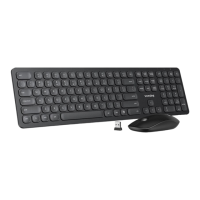

 To Next Page