38 39
4.3.5 Settings
A series of settings are available for your selection by touching the Menu
key selecting Settings from Friends list screen, and choose an account.
• Mobile indicator Select to display an indicator icon along with
your name in other people’s Friends list.
• Invitation
notifications
Select to activate the notification function on
status bar when a new message arrives.
• IM/Video chat
notifications
Touch to set the notification way for text or
Video chat.
• Notification/
Video chat
ringtone
Touch to choose a ringtone for notification or
Video chat.
• Vibrate Touch to set the vibrate way for text or Video
chat.
• Blocked friends Touch to show/unblock blocked friends.
• Clear search
history
Touch to clear previous chat search history from
showing up in the Search box.
• Manage account Touch to add, remove or sync your accounts.
• Terms & privacy Touch to show more information about Talk.
5 Calendar & Time
5.1 Calendar
Use Calendar to keep track of important meetings, appointments, etc.
5.1.1 Multimode view
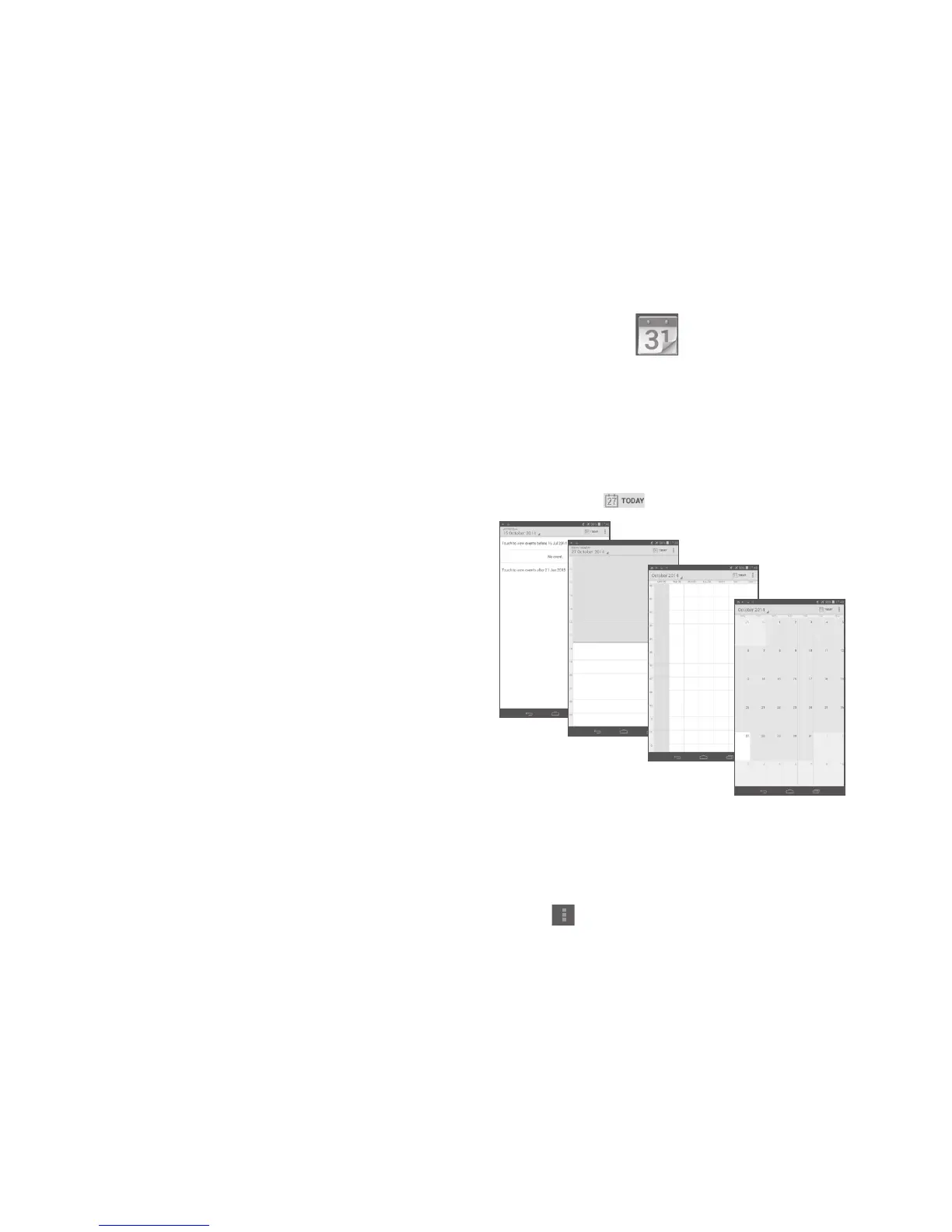
You can display the Calendar in daily, weekly, monthly, or agenda view.
• Touch the Week label on the top of the screen to change your
Calendar view, and a drop-down menu will display for you to choose.
Touch the icon
to return to Today's view.
In Agenda, Day or Week view touch
an event to view its details.
Touch a day in Month view to
open that day's events.
Agenda view
Day view
Week view
Month view
5.1.2 To create new events
You can add new events from any calendar view.
• Touch
and select New event to access new event edit screen.



 To Next Page
 Loading...