64 65
8.3.1 Watch videos
Touch a video to play it. When playing, you can view information and
video comments, and also browse links to related videos.You can also
rate, share, label as favorite, create a new playlist, etc from this screen.
To exit video playing screen, touch Back key to return to the video list.
8.4 Video
Video player is a small built-in video player that lists all your videos.
Touch an item from the list to play. While playing, use Pause, Forward
and Back functional icons as required, touch a point on the timeline to
jump to and play from.
9 Maps
9.1 Get My Location
9.1.1 Choose a data source to decide My Location
Drag down quick setting panel and touch to access Settings, touch
Location access.
Touch the switch
to turn on GPS satellites to set GPS as My
Location data source.
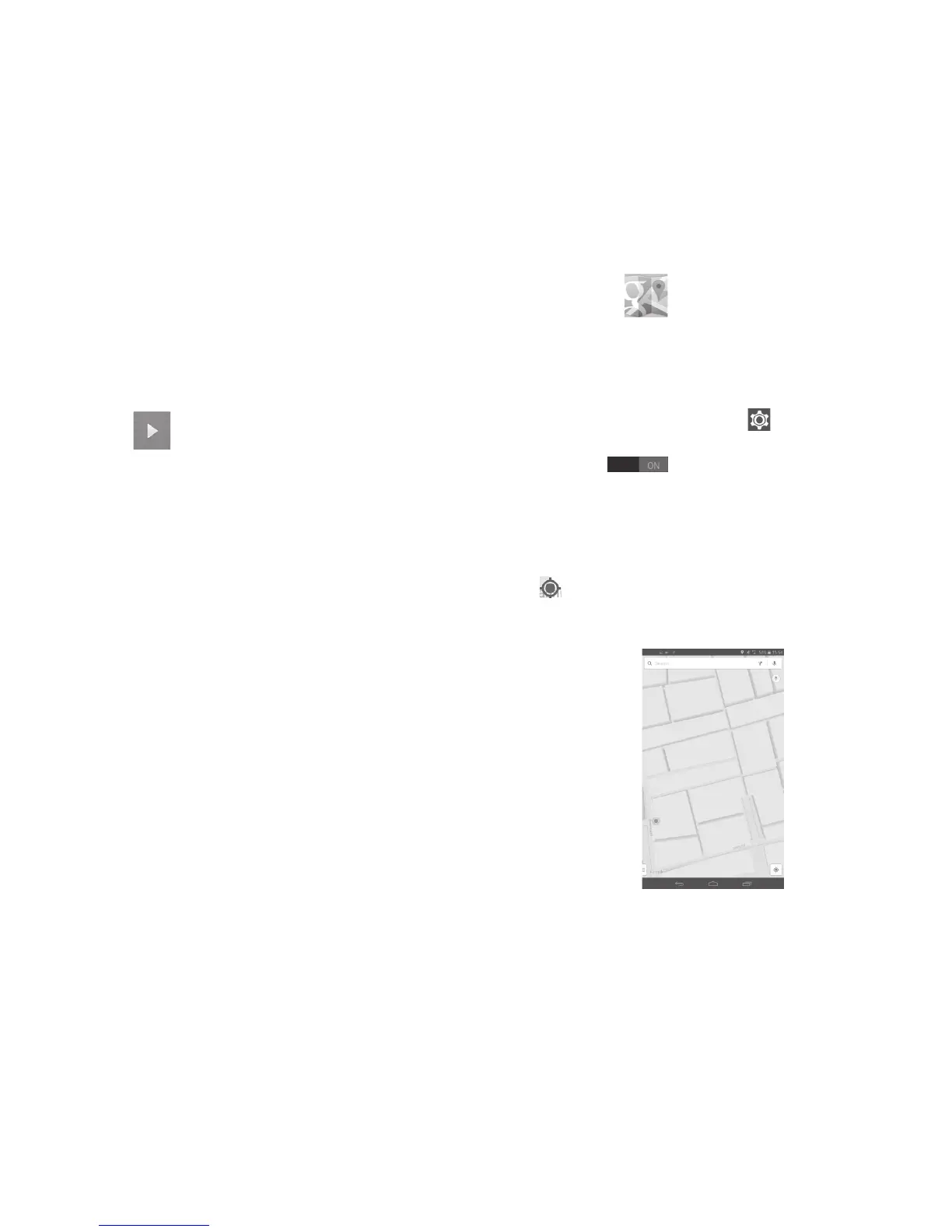
9.1.2 Open Google Maps and view My Location
Touch Maps from the Home screen.
Touch
icon on the map to view My Location.
The map will then center on a blue dot with a blue circle around. Your
actual position is within the blue circle.



 To Next Page