6 7
Volume Keys
• In Music/Video/Streaming mode, adjust the media
volume.
1.2 Getting started
1.2.1 Set-up
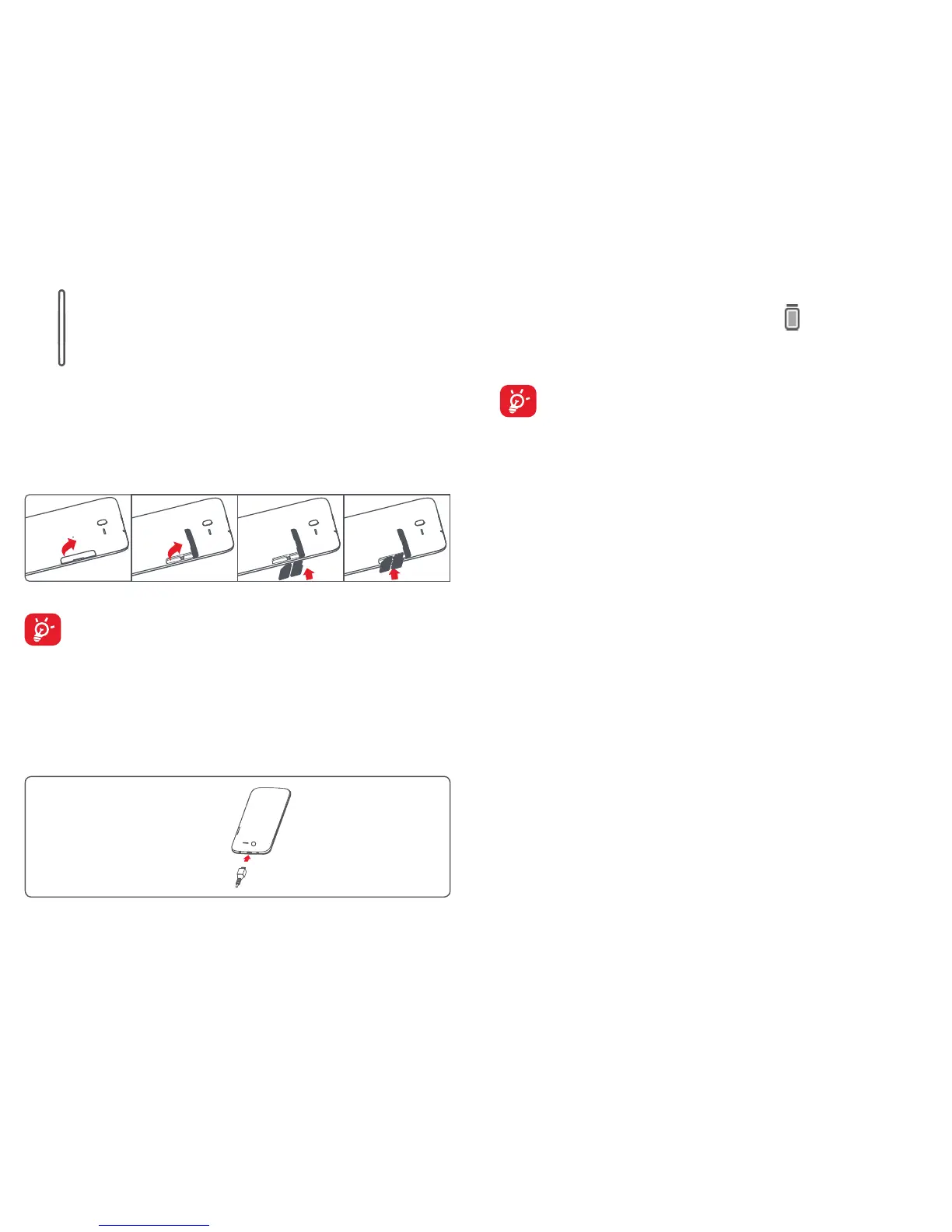
Inserting the micro SIM card & the microSD card
Before inserting/removing the SIM card and the microSD card,
you should ensure the tablet is off, to protect it from corruption
or damage. In addition, regularly removing or inserting the SD
card may cause the tablet to restart.
Your tablet only supports micro-SIM cards. Do not attempt to insert
other SIM types like mini and nano cards, otherwise you may damage
your tablet.
Charging the battery
To charge your tablet, connect the charger to your tablet and mains
socket.
• When using your tablet for the first time, charge the battery fully
(approximately 5 hours).
You are advised to fully charge the battery (
). Charging status is
indicated by the percentage on screen while the tablet is powered off. The
percentage increases as the tablet is charged.
To reduce power consumption and energy waste, when battery is
fully charged, disconnect your charger from the plug; switch off
Wi-Fi, GPS, Bluetooth or background-running applications when
not in use; reduce the backlight time, etc. This device cannot be
charged through USB computer connection. Please plug in your
charger before first usage.
1.2.2 Power on your tablet
Hold down the Power key until the tablet powers on, unlock your
tablet(Slide, PIN, Password, Pattern, Face unlock) if necessary and
confirm. The Home screen is displayed.
If you do not know your PIN code or if you have forgotten it, contact your
network operator. Do not leave your PIN code with your tablet. Store this
information in a safe place when not in use.
Set up your tablet for the first time
The first time you power on the tablet, you should set the following
options:
• Select the tablet's language, then touch Start.
• Select Mobile data connection you want to use, then touch Next.
• Setup your Google account: If you have a Google Account, touch Set
up now, then enter your user name and password. You can also touch
Skip to get the next step.
• Set Date and Time. You can also choose Automatic time zone, then
touch Finish.
• When the tablet is powered on, you can connect to a Wi-Fi network,
without a SIM card inserted (refer to section "6.1.2 Wi-Fi"), to sign into
your Google account and to use some features.


 To Next Page
 Loading...