6 7
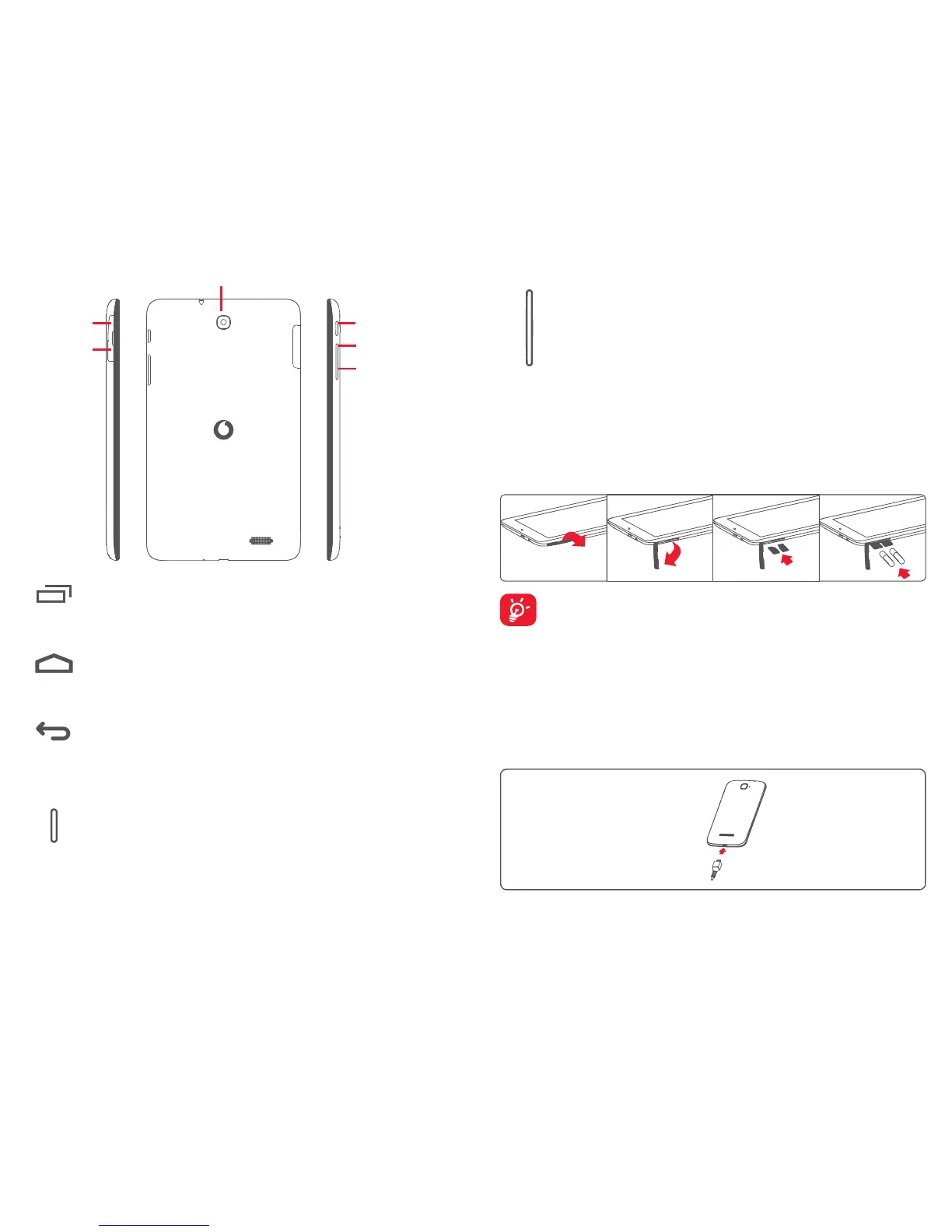
Volume up
Micro Sim
Volume down
Rear Camera
Power key
microSD
Multitask key
• Touch to open a list of thumbnail images of applications
you've worked with recently.
Home key
• While on any application or screen, touch to return to
the Home screen.
Back key
• Touch to go back to the previous screen, or to close
a dialog box, options menu, the notification panel, etc.
These keys are visible when the screen lights up.
Power key
• Press: Lock the screen/Light up the screen
• Press and hold: Power on or pop up the menu to get
more options, such as Power off, Restart, Airplane
mode, etc.
• Press and hold Power key and Volume down key to
capture a screenshot.
Volume Keys
• In Music/Video/Streaming mode, adjust the media
volume.
1.2 Getting started
1.2.1 Set-up
Inserting the micro SIM card & the microSD card
Before inserting/removing the SIM card and the microSD card,
you should ensure the tablet is off, to protect it from corruption
or damage. In addition, regularly removing or inserting the SD
card may cause the tablet to restart.
Your tablet only supports micro-SIM cards. Do not attempt to insert
other SIM types like mini and nano cards, otherwise you may damage
your tablet.
Charging the battery
To charge your tablet, connect the charger to your tablet and mains
socket.


 To Next Page
 Loading...