11
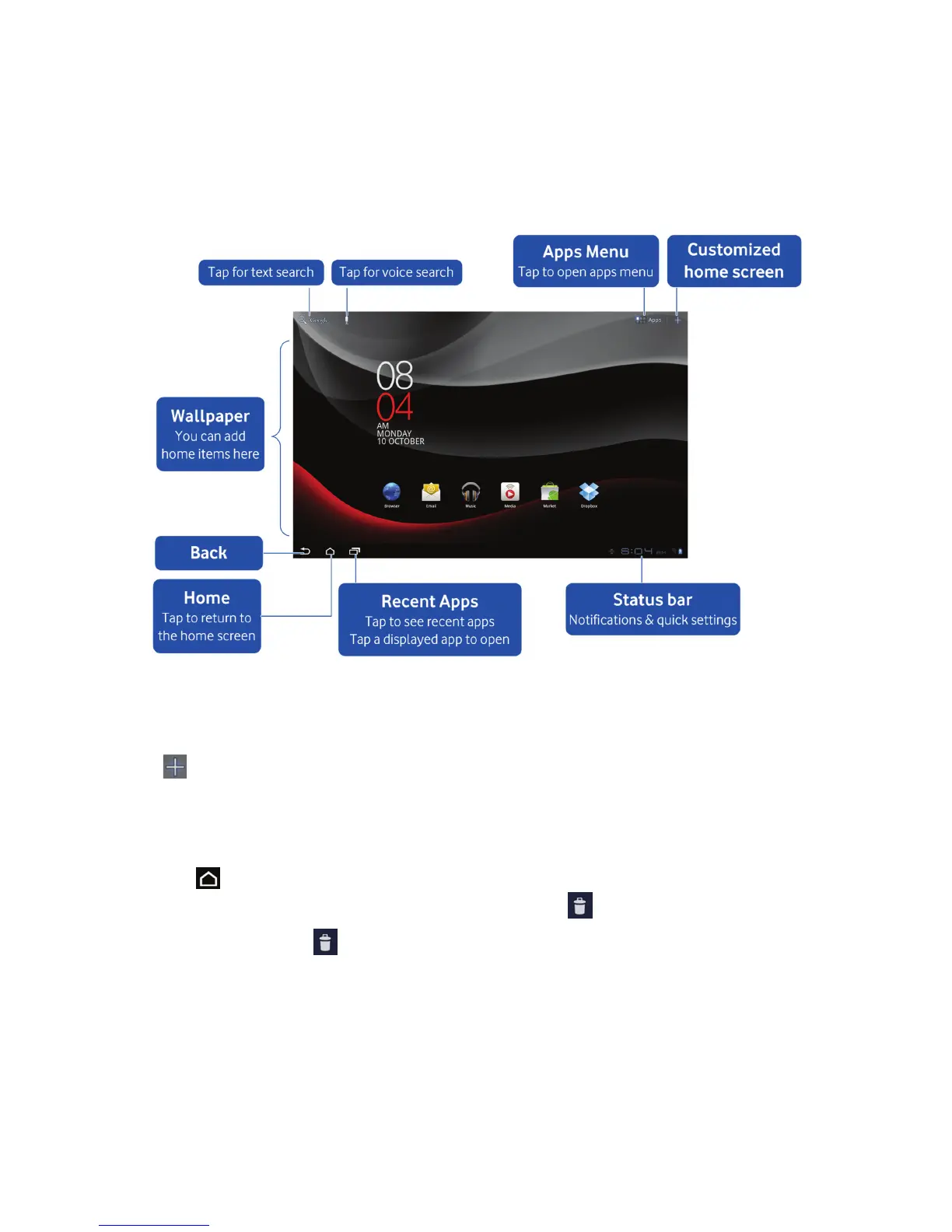
Introduction to the Home Screen
Beyond the screen width, the Home Screen extends to multiple panels and provides
morespaceforaddingitems.Slideyourngertotheleftorrighttogettheextended
Home Screen. From any panel, you can start an application by tapping on its icon or
use the Apps Menu on the top right corner to enter the main menu.
Customizing the Home Screen
Tap icon on the top right corner to open
Customize home screen
with widgets,
applications,wallpapersandmorefunctionsyouwanttohaveonyourngertip.
Removing a Home Screen item
1. Tap to return to Home Screen.
2. Tap and hold the item you want to delete until the icon appears on the screen.
3. Drag the item into .
How to open the notications and quick settings panel
From the
Notications and quick settings panel
, on the bottom right corner, you
cangettheinformationoftabletstatus,appnotication,andquicksettingsfromthe
NoticationPanel.
Toseeaspecicnotication,touchtheicon.Toopenapanel,touchthedigitalclock.



 To Next Page