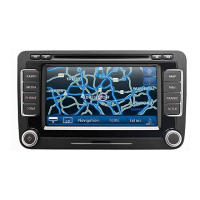
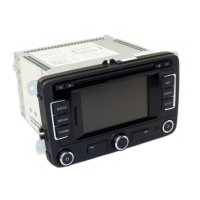
Volkswagen Touareg Navigation Quick Start Guide
Main Menu
The first time you use your navigation
system, pressing the
NAVI hard key will
take you to this screen.
A Starts route guidance to selected
destination. The system will calculate
your route and proceed to take you to
the map menu screen. The system will
provide you with voice and visual
guidance once the route calculations
have been completed.
B Select destination menu.
C Select stopover destination.
D Define parameters for routing between
selected points.
E Define system settings.
Destination Entry Menu
You will be automatically taken to this screen
if you press the DESTINATION soft key
(Main Menu). This screen will enable you
to select a variety of destination options.
A Select a new destination.
B Select an address from previously
saved destinations.
C Select an address from the destination
memory.
D Select a Point of Interest (hotel, restau-
rant, airport, etc.) by name, category,
or distance.
E Select a location that was previously
saved by a ‘flag’.
F Select a destination on the map display
using crosshairs.
G Select a destination by longitude and
latitude coordinates.
H Store, delete, edit destinations or
stopover points.
Point of Interest (POI) Selection Menus
You will be taken to this screen if you press
the
POI soft key (Destination Entry Menu).
You can select a number of options; near
destination, position, or regional.
A Search for a POI near destination.
B Search for a POI near current
position.
C Search for a regionally significant POI.
Choose the required POI category
type. The control knob is used to toggle
through the menu and select a catego-
ry. Confirm selection with OK.
Once a category has been selected
you may be required to select a sub
category for certain selections. Confirm
selection with OK.
Select the POI to which you want to
route. Confirm with OK.
A
C
E
A
C
E
G
F
G
E
C
B
A
Address Entry Menu
Upon selecting the NEW ADDRESS soft
key (Destination Entry Menu) you will be
taken to this screen.
A Enter the city name of your destination
to narrow down the search.
B Enter the street name of your destina-
tion to narrow down the search.
C Enter the intersection for a more
specific location.
D Enter the house number for a more
specific location.
E Select center of city.
F Enter destination by referring to map
and utilizing crosshairs.
G Select a POI near current location.
Keyboard Entry Menu
This screen is used for the entry of city,
street, house number, etc. You will be
automatically taken to this screen if you
choose to enter the name of a city, street,
etc. (Address Entry Menu).
A Toggle through the letters represented
on the smart keypad to spell out the
name.
B Toggle through the numeric entry pad
to input house number.
C Enter blank space.
D In the event of an error, each letter can
be cleared and corrected by moving
the blinking cursor.
E Enter OK to move to the updated listing
illustrated in (
G).
F Illustrates current choice of spelling
using the smart keyboard.
G Dynamic matching list. The details listed
will update as the name, city, street,
etc. are entered. If the name is illustrat-
ed then select ‘OK’ to choose the name
from the list.
Map Menu Screen
The Map and turn-by-turn screens may be
viewed by pressing the
MAP hard key.
Unless otherwise specified, the display will
automatically revert to map display mode
once route guidance is requested.
Items on the left and right of screen can
be chosen by one of two ways. The multi-
function soft keys or the
MENU button can
be used to toggle between menu items.
Depress the
MENU button to confirm
choice.
Turn-by-Turn Screen In Instrument Cluster
To minimize driver distraction, your VW navigation
system is also incorporated into your driver console.
A Direction arrow.
B Proximity bar – displays distance to next
change of direction.
C Current location.
B
D
F
G
H
B
D
A
C
E
B
D
A
C
E
B
D
F
A
B
F
I
J
K
L
H
B
A
C
A
Zoom In.
B Zoom Out.
C Autozoom – system automatically
zooms depending on driving conditions
e.g. scale will be larger during
expressway driving and more detailed
under urban driving conditions.
D Crosshairs – enables guidance to
locations using map and crosshairs.
E Audible instruction details.
F Turn-by-turn directional instructions.
G Proximity bar – displays distance to
next maneuver.
H Map scale.
I Route listing.
J Driving direction.
K POI icon display.
L Display settings.
G
D
C


 To Next Page
 Need help?
 General