3. Automatic search/store station
Click “ ” icon on radio menu, the system will search from lowest frequency to highest
frequency automatically, and store strong signal station. During radio station searching,
press again “ ” icon to stop the searching.
4. Preset Station
Each band can be stored 6 stations frequency. The unit can be stored total 30 stations (18
FM stations, 12 AM stations).
5. Preview Station
Press “ ” button on main menu to preview FM/AM band preset stations autimatically,
each station will preview 10 seconds.
6. Manual Stored Station
Long press preset radio button(1-6) for 2 seconds, the current radio frequency is stored in the
corresponding preset radio station.
7. Stereo / Mono Switch (Only have effect on FM)
In the city center, the radio signal is stronger, use stereo to receive may obtain better results,
but when the radio signal is unstable, you can switch to mono mode to improve radio results
Use “ ” switch to stereo mode, the screen will display high light “ST” symbol, indicating
that the stereo mode is turned on, otherwise stereo mode is forced to close.
1. Users use SD card with gps software insert into gps port on the front panel.
2. During “Settings Interface - Navigation Settings” set up the correct navigation path.
3. Press NAVI/GPS button on the front panel or click“ ”icon on the main menu to enter
navigation interface.
Note: Do not take out of the gps map, otherwise it will cause damage map software or unit
systematics!
Navigation operation
The unit support audio, video and image display in USB, SD.
After insert USB or SD card, the unit will automatically detect and enter the multimedia
playback mode. The unit will analys all the files in USB and SD card and classify the file
based on the file extension into audio, video, image categories.
If the current USB or SD card is ready, click USB icon “ ” or SD icon “ ” on the
main menu also can enter into the playback interface.
1. Video Playback
The unit can support variety of video
formats, supported video format as follow:
AVI, VID, DIVX, ASF, MP4, M4A, MPG,
MPEG, DAT, VOB, 3GP, M2V, 3G2, M4V,
OGM, RM, RMV, RMVB, FLV, MKV, MOV,
TS, M2TS, MFS, ect.
2. Audio Playback
The unit can support variety of audio
formats, supported video format as follow:
MP3, AC3, AAC, RA, RAM, RMM, PCM,
WAV, MP1, MP2, FLAC, APE, OGG, ect.
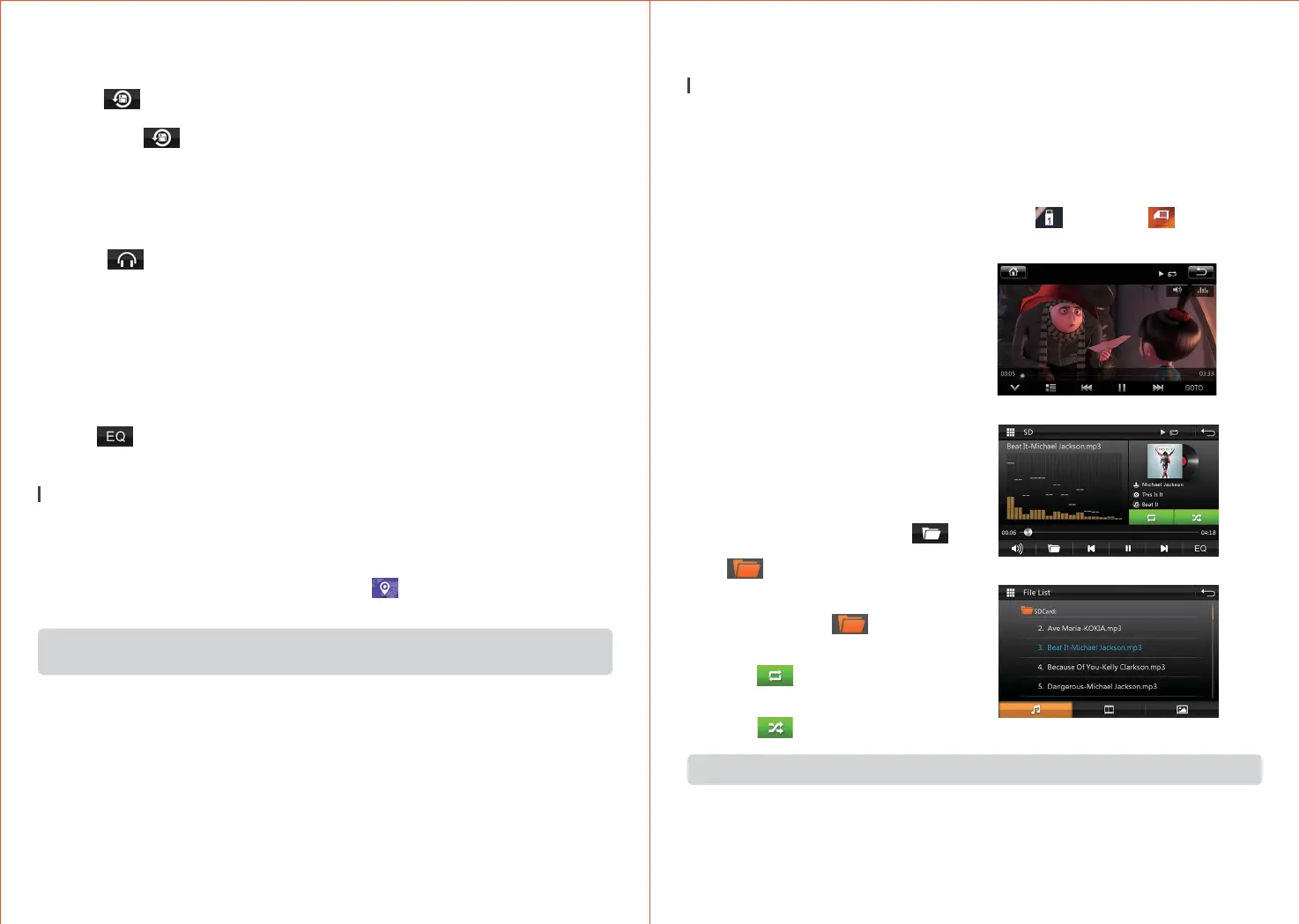
3. Folder and List
During playback interface, click “ ” to
enter the file list interface. Users can click
“ ” to enter corresponding folder,
then select your favorite songs to start
playing.
You also can click “ ” to return previous
folder.
4. Repeat and Random
Click “ ” to switch repeat mode,
repeat track→ Repeat folder → repeat all
tracks.
Click “ ” to turn on/off tracks random
mode.
USB/SD display operation
SD video playback interface
SD audio playback interface
SD folder and list interface
Note: This unit mainly support FAT16/FAT32/EXFAT/ NTFS file format.
1211


 To Next Page
 Loading...