6 7
Next Steps
Congratulations! You have nished basic setup of your Firebox. You can use the Web UI to
view and edit your conguration and to manage and monitor your device. Here are some
recommendations to help you get started:
Verify your Internet connectivity
• With your Firebox installed in your network, make sure that your users can
successfully browse the Internet.
Upgrade your Firebox to the latest OS version
Keep your Firebox current with the latest version of Fireware OS. To upgrade:
1. Go to www.watchguard.com/support and click Software Downloads.
2. Find the software downloads page for the Firebox M200/M300.
3. Download and run the installation package for the latest version of Fireware OS.
This installs an upgrade le on your computer that you must upload to the Firebox
with the Web UI.
4. In the Web UI, select System > Upgrade OS.
5. Browse to the upgrade le. The le name is M200_M300.sysa-dl.
This installation extracts the upgrade le to the default location of C:\Program Files(x86)\
Common les\WatchGuard\resources\FirewareXTM\<version>\
On a computer with a Windows 32-bit operating system, the path is: C:\Program Files\Common
Files\WatchGuard\resources\FirewareXTM\<version>\
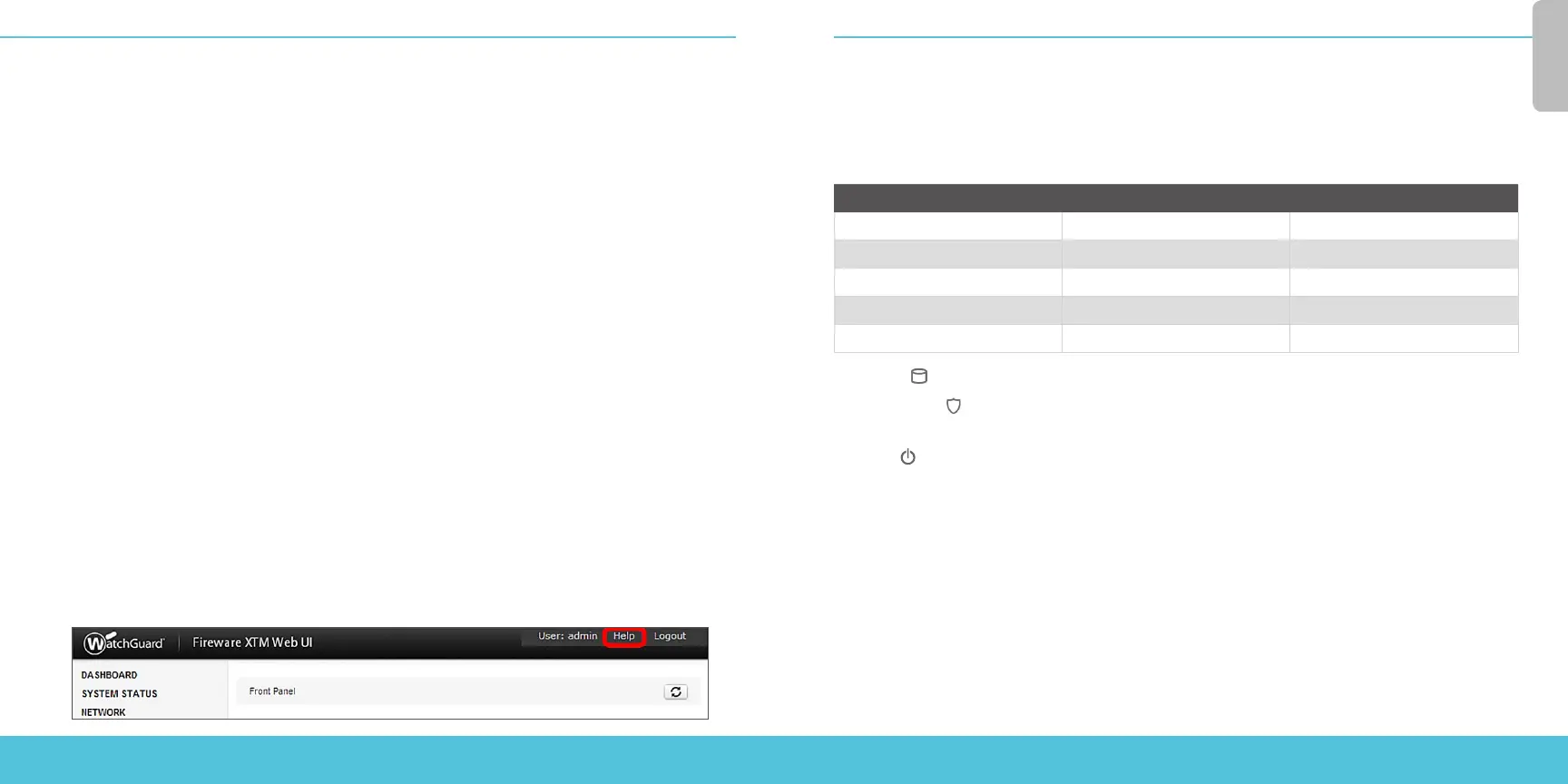
Explore the features and functions of your Firebox
Browse the Web UI to learn more about the management, monitoring, and security
features. Help is available in the upper right of each screen.
About the Device Status Lights
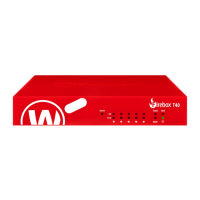
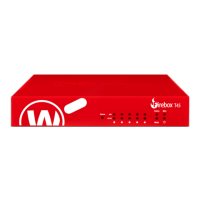
RJ45 interfaces
Interfaces 0 - 7 are RJ45 Ethernet interfaces that support link speeds of 10, 100, or 1000
Mbps. Each RJ45 interface has a pair of indicators. The right indicator shows the interface
connection status. The left indicator shows interface activity.
Indicator Indicator color Interface Status
Connection (right) Yellow Link at 1000 Mbps
Green Link at 100 Mbps
Not lit Link at 10 Mbps, or no link
Activity (left) Yellow, blinks Power on, network activity
Not lit Power o, no connections
Storage ( ) – When there is activity on the SD card, the storage indicator is yellow.
Arm/Disarm ( ) – When the device is armed and ready to pass trac, this indicator is
green. When the device is powered on, but not ready to pass trac, this indicator is red.
Power ( ) – The power indicator on the left front of the device is green when the device
is powered on.
English




 To Next Page