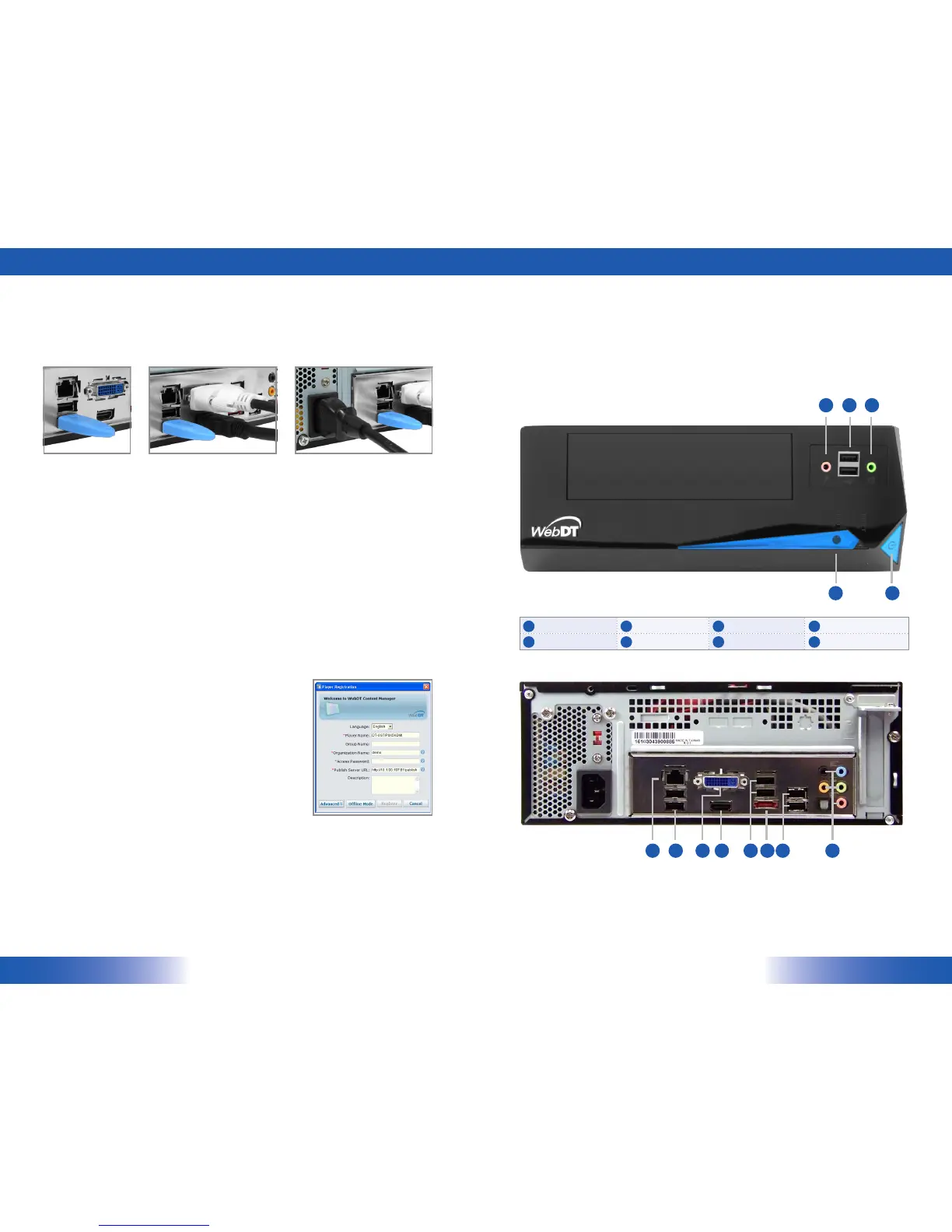
Audio jacks USB ports Power buon HDD status indicator
RJ45 connector DVI-I output HDMI port IEEE 1394 port
MS200
ENGLISH
2
3
ENGLISH
Memory and Storage
Depending on the base soware configuraon, the user may need only the internal HDD of the
MS200 for user
’
s installed soware and storage. The user may also supplement storage space with
USB-based peripherals such as flash disks, disk drives, etc.
I/O Ports
Connecng Peripherals
Insert the USB dongle to a USB port (1) and make sure your monitors are connected the MS200
with video cables (2). Aer the peripherals are well connected, plug the power cord into the
MS200 (3) and insert the other end into a power outlet.
NOTE: DO NOT connect the power cord before connecng the USB dongle and all cables to the MS200.
Powering ON and OFF
The Power Buon is located on the front of the MS200. To turn the MS200 on, push and release
the Power Buon on the front bezel. The power LED will be lit (blue), and the corresponding
interface will be shown on the display monitors.
To turn off the device, use the soware shutdown interface provided, or unplug the appliance.
In the event of system lockup, unplug or re-plug the power cable. Also, the Power Buon may be
used to perform a reset on the device. To do that, push and hold the Power Buon for at least
4 seconds. The system will shut down and all unsaved work may be lost. Pushing on the Power
Buon again will restart the device.
Server Installaon
Please refer to the other documents inserted in the package to
start seng up your WebDT Content Manager server via the
WebDT Content Manager CD.
Appliance Registraon
Aer turning on the MS200 for the first me, a screen prompt is
displayed for registering the player. If the screen prompt is not
shown, please follow the instrucons below:
Press and hold
“
Control + Shi + Space
”
to exit the WCM Player soware.1.
Navigate to Start | All Programs | DT Research | WebDT Signage Player2.
Select Register WebDT Signage Player Again. The Player Registraon screen should appear. Fill in 3.
all fields to register. The required informaon is marked.
Click OK to register and connect to the WebDT Signage Appliance Publish Server.4.
<1> <2> <3>
Insert the USB dongle. Connect video cables (DVI/ HDMI)
with monitors.
Connect the power cord.
E
A
D C
AB
B F G B H B A
A B C D
E F G H
MS200 Front
MS200 Rear



 To Previous Page
 Loading...