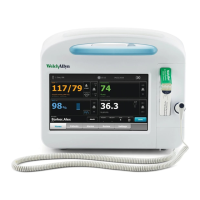
The Patient ID appears in the Patient frame.
Caution Verify patient identity on the monitor after manual or barcode entry and
before printing or transferring patient records.
Select a patient
1. Touch the Patients tab.
2. From the patient list, touch the patient's identifier (name, ID number, or location).
The patient's identifier is determined in Advanced settings.
3. Touch Select.
Note In the Spot Check and Triage profiles, previous patient data will be
overwritten by a new save. In the Monitor profile, selecting a new
patient will clear the current patient data and readings.
Patient data can be sorted in ascending or descending order by selecting the heading row and
touching ▲ or ▼.
Manage patient records
Patient records can be sent to the network, printed, or deleted.
1. Touch the Review tab.
Note Measurements that triggered a physiological alarm will be
highlighted on this tab.
2. Select patients by touching the check box next to their names.
3. Touch Send to transmit the records to the network, Print to print the records, or Delete to
permanently remove the records as desired.
Caution Verify patient identity on the monitor after manual or
barcode entry and before printing or transferring patient records.
Caution Always visually verify the printed patient records.
Note The icon indicates the records have been sent to the
network.
46
Patient data management Welch Allyn Vital Signs Monitor 6000 Series™


 To Next Page
 Loading...