TRACKBALL OPERATING INSTRUCTIONS FOR
AJAR!'I COMMODORE! SEARS, TEXAS INSTRUM ENTS, RADIO SHACK• AND ODYSSEY* MODELS.
FIRE BUTTON
PHENOLIC BALL
AC POWER SUPPLY FOR
RADIO SHACK® TRS80®,
TEXAS INSTRUMENTS,
AND ODYSSEY®
PLUG INTO
TRACKBALL
UNIT
PLUG INTO
110V AC
WALL SOCKET
CONTROL PORT PANEL
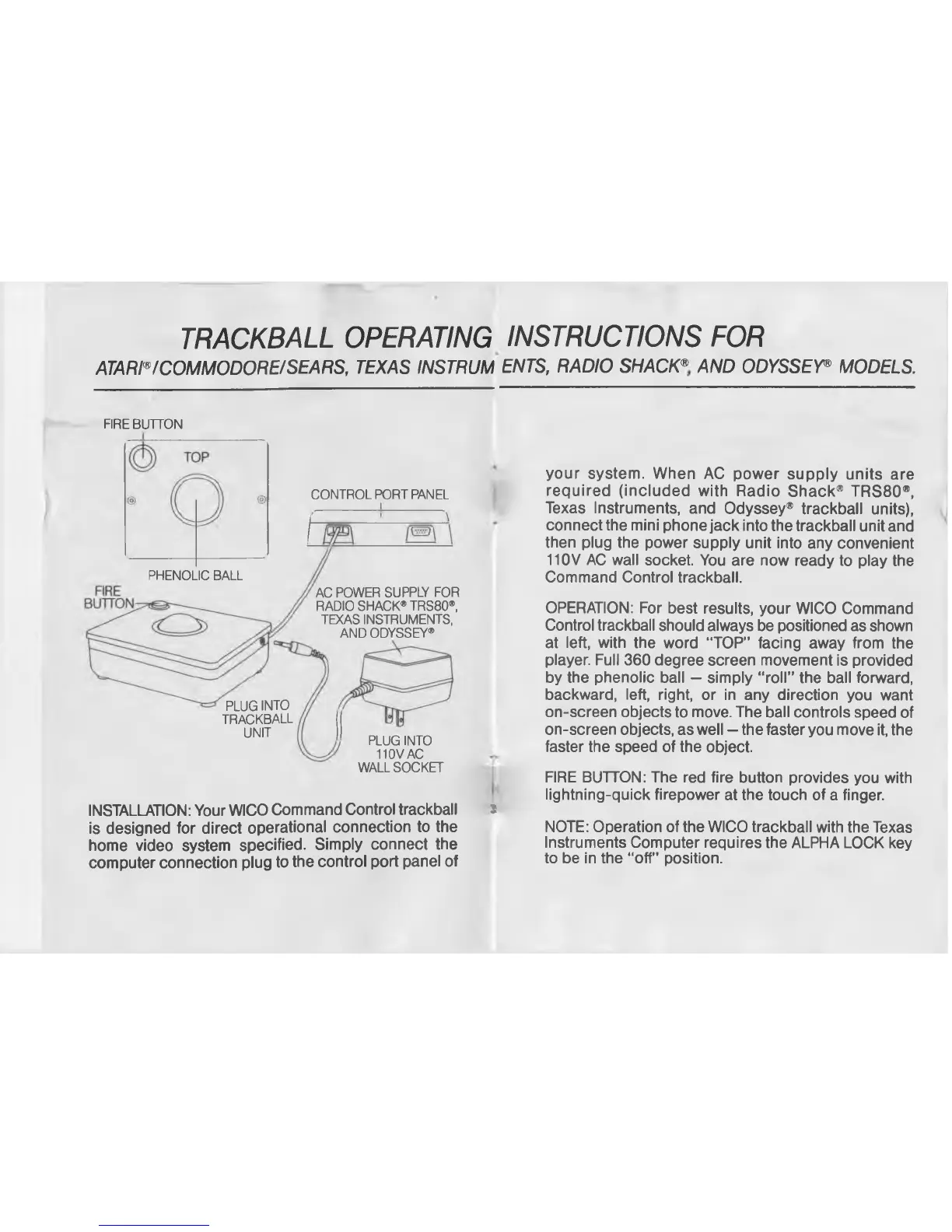
INSTALLATION: Your WICO Command Control trackball J
is designed for direct operational connection to the
home video system specified. Simply connect the
computer connection plug to the control port panel of
your system. When AC power supply units are
required (included with Radio Shack® TRS80®,
Texas Instruments, and Odyssey® trackball units),
connect the mini phone jack into the trackball unit and
then plug the power supply unit into any convenient
110V AC wall socket. You are now ready to play the
Command Control trackball.
OPERATION: For best results, your WICO Command
Control trackball should always be positioned as shown
at left, with the word “TOP” facing away from the
player. Full 360 degree screen movement is provided
by the phenolic ball — simply “roll” the ball forward,
backward, left, right, or in any direction you want
on-screen objects to move. The ball controls speed of
on-screen objects, as well — the faster you move it, the
faster the speed of the object.
FIRE BUTTON: The red fire button provides you with
lightning-quick firepower at the touch of a finger.
NOTE: Operation of the WICO trackball with the Texas
Instruments Computer requires the ALPHA LOCK key
to be in the “off” position.



 To Next Page