support01@wimius.com
EN29
FAQ
Thank you for selecting the
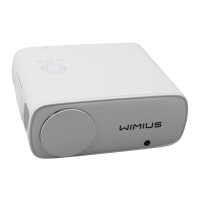
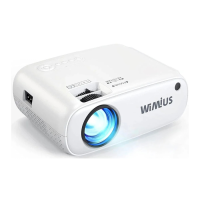
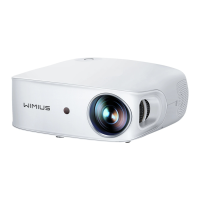
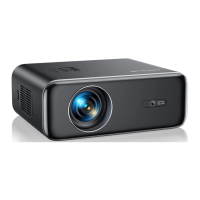
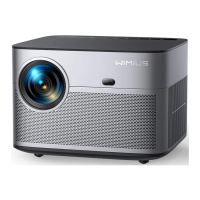
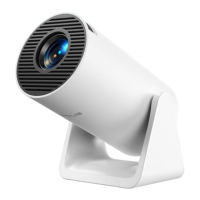
WiMiUS S27 projector
. We have compiled some frequently asked questions and their
corresponding answers to assist you better:
Q1: There is
a black spot
on the projected image. How can I remove it?
A: Gently tap the projector or blow air inside with a hairdryer. Carefully open the side dust cleaning port of the
projector. Wipe the inner screen with a clean cotton swab, if necessary, dip it in alcohol for better cleaning.
Exercise caution to avoid causing any damage. For more help, email us at
support01@wimius.com
Q2: The screen
mirroring or WiFi
connection is unstable. How can I resolve this issue?
A: Screen mirroring requires a strong wireless WiFi signal, ensure that your home network is functioning well. The
video resolution will dynamically adjust based on the strength of your Wi-Fi signal. Additionally, activate your
phone’s hotspot and connect to S27 to identify if the issue is with the home network. If the problem persists, please
reach out to us at
support01@wimius.com
for further assistance.
Q3: When screen mirroring, the projector cannot play
Netix, Youtube, Hulu, or Disney videos, etc
. Why?
A: Due to copyright restrictions, most projectors do not support wireless mirroring of streaming services such as
Netix, Hulu, and Disney. To enjoy these services, we recommend using a TV Stick (not included) along with our
projector.
Q4: Why the screen is
upside down
and how can I adjust the
projected image
?
A: Please go to the Setting-->Projection Mode-->to flip the image direction. Place the projector lens
perpendicularly to the projection screen or curtain wall. Adjust the focus using the focus adjustment roller until
the image becomes clear. For picture rectangle adjustments, access the picture image settings and enable the


 To Next Page