Wi-Fi/Computer/TV Connecting
Wi-Fi CONNECTION
Connect to the Wi—Fi
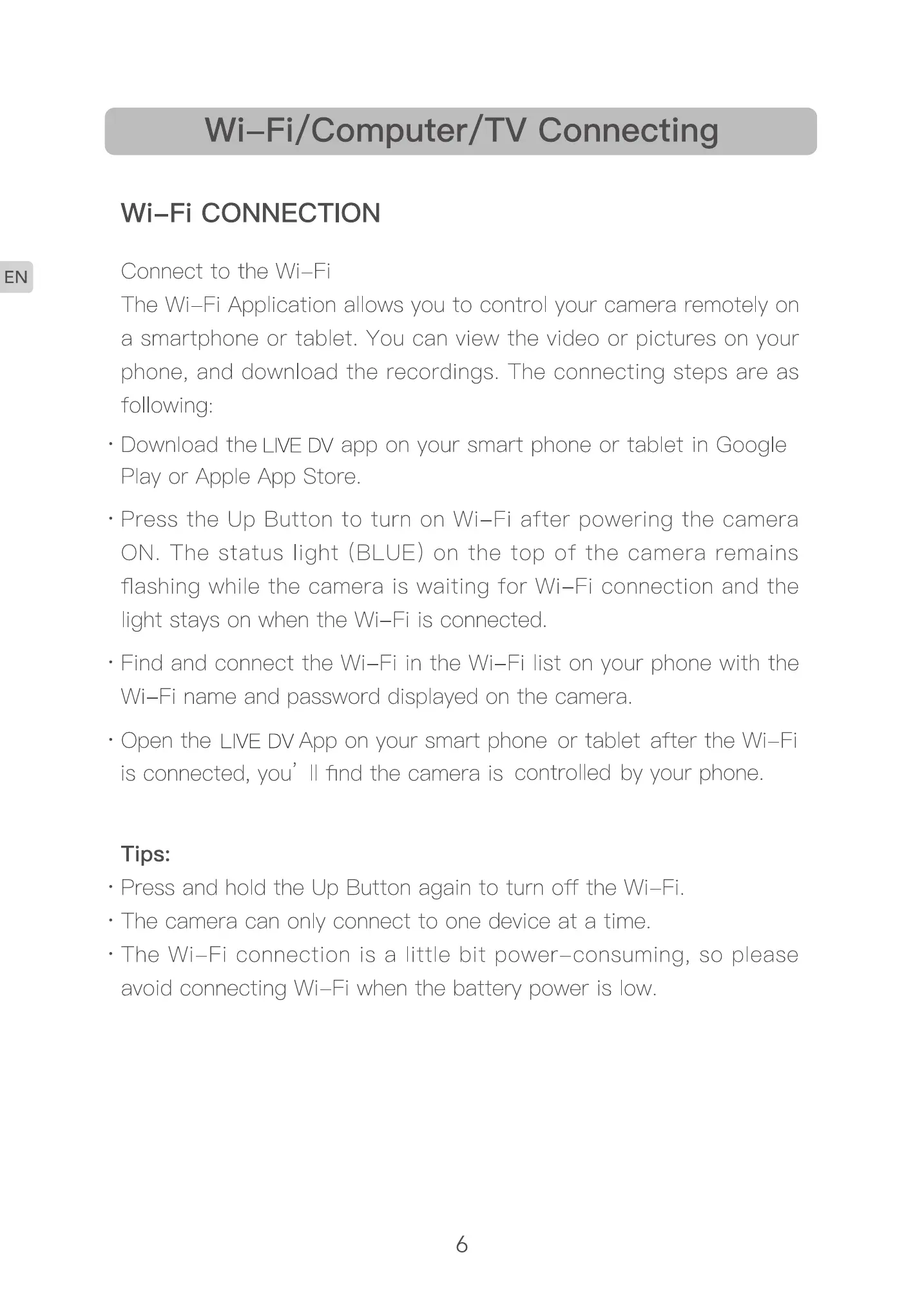
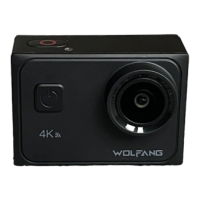
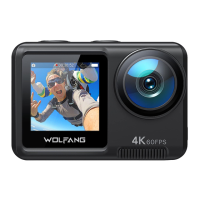
The Wi-Fi Application allows you to control your camera remotely on
a smartphone or tablet. You can view the video or pictures on your
phone, and download the recordings. The connecting steps are as
fol owing:
• Download the LIVEDV app on your smart phone or tablet in Goog e
Play or Apple App Store.
• Press the Up Button to turn on Wi—Fi after powering the camera
ON. The status light (BLUE) on the top of the camera remains
flashing whi e the camera is waiting for Wi—Fi connection and the
light stays on when the Wi—Fi is connected.
• Find and connect the Wi-Fi in the Wi-Fi list on your phone with the
Wi—Finame and password displayed on the camera.
• Open the LIVE DVApp on your smart phone or tablet after the Wi-Fi
is connected you' find the camera is controlled by your phone.
Tips:
• Press and hold the Up Button again to turn off the Wi-Fi.
• The camera can only connect to one device at a time.
• The Wi—Fi connection is a little bit power—consuming, so please
avoid connecting Wi—Fiwhen the battery power is low.
6


 To Next Page