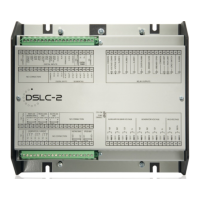
Manual 37443A DSLC-2 - Digital Synchronizer and Load Control
© Woodward Page 53/226
Connect ToolKit And The DSLC-2 Unit
For configuration of the unit via ToolKit please proceed as follows:
1. Connect the null modem communications cable between your PC and the control unit. Plug the null
modem cable into the RS-232 serial port on unit and the other side to a serial COM port of the PC. If the
PC does not have a serial port to connect the null modem cable to, use a USB to serial adapter.
2. Open ToolKit via Windows Start menu -> Programs -> Woodward -> ToolKit 3.x
3. From the main ToolKit window, click File then select “Open Tool”... or click the Open Tool icon on
the tool bar.
4. Locate and select the desired tool file (*.WTOOL) in the ToolKit data file directory and click Open.
5. From the main ToolKit window, click Device then click “Connect” or select the Connect icon on the
toolbar.
6. The connect dialog window will open if the option is enabled.
a. Select the COM port that is connected to the communication cable.
b. Click the “Connect” button.
7. The identifier of the device that ToolKit is connected to, will display in the status bar.
8. If the Communications window opens, select “ToolConfigurator” under Tool Device and close the
Communications window.
9. If the device is security enabled, the Login dialog will appear.
10. Enter password
11. Now you are able to edit the DSLC-2 parameters in the main window. Any changes made are written to
the control memory automatically.
b
a


 To Next Page
 Loading...