EasyManua.ls Logo

XBMCMart B085S822P5 - User Manual

XBMCMart B085S822P5
2 pages
Print Icon
To Next Page IconTo Next Page
Loading...
XBMCMART
QuickStart Guide
www.xbmcmart.com
Frequently Asked Questions
How do I set the time?
- From the home screen go to Settings > Time.
How do I update?
- The device automatically updates if your Internet is connected.
Can I use this device on more than one TV at a time?
- You can only connect the device to one TV at a time.
Why do I experience buffering?
- Buffering depends on your Internet speed and the speed / load
of the server attempting to play from. Often this is resolved by
choosing another source / server. Run a speed test as well.
How do I run a speed test?
- Select the “Internet Speed Test” option from the apps section.
We recommend atleast 15 mbps download and
10 mbps upload.
How do I remove the “Swipe down from top to
exit full screen” message?
- Press the CURSOR button on your remote to turn on the cursor
on your screen. Next, use the arrow on your remote to navigate
the cursor to the top of your screen and select OK when the
cursor is positioned at the blue OK button. Once the popup is
gone, press the CURSOR button again on your remote to
disable the cursor.
Can I use this device outside the U.S.?
- Yes as long as you have high speed internet.
Where can I buy another remote control?
- We recommend to purchase a mini backlit keypad combo
available at www.xbmcmart.com.
My Wi-Fi signal is strong but nothing will play.
- Run a Speed Test.
How do I reset my device?
- Press SETUP on your remote and go to Other > More Settings
> Backup and Reset > Factory Data Reset > Reset > Erase.
My device is frozen in on an app.
- Press the Home button on your remote then select Clear Cache.
My device is powered on but I do not see anything on my TV.
- Check to make sure that your TV is set to the correct input source
to which you have connected the HDMI cable. Also try to connect
to a different HDMI port on your TV or use a different HDMI cable.
I have no sound output from my TV.
- Press SETUP on your remote and go to Other. Turn off auto-
detect sound output then manually set sound output to HDMI.
For any other question, please contact support between
9AM - 5PM CST Monday through Friday.
Email: support@xbmcmart.com
Live Chat at www.xbmcmart.com
Phone: 972-244-3689

Question and Answer IconNeed help?

Do you have a question about the XBMCMart B085S822P5 and is the answer not in the manual?

Overview

This document serves as a QuickStart Guide and Frequently Asked Questions (FAQ) for the XBMCMART Android TV Box, outlining its setup, usage, and troubleshooting.

Device Description and Functionality:

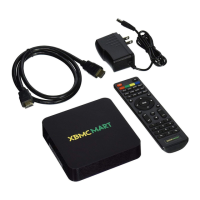
The XBMCMART Android TV Box is a streaming media device designed to connect to your television, allowing you to access various applications for streaming content. It functions as a central hub for entertainment, enabling users to stream movies, TV shows, and other digital media directly to their TV screen. The device connects to your TV via an HDMI cable and requires an internet connection (either Wi-Fi or Ethernet) to function.

Important Technical Specifications:

  • Connectivity: HDMI output for TV connection, Ethernet port for wired internet, Wi-Fi for wireless internet.
  • Power: Requires a power adapter connected to a wall outlet.
  • Recommended Internet Speed: At least 15 Mbps download and 10 Mbps upload for optimal performance and to avoid buffering.
  • Remote Control: The device comes with a remote control for navigation and input. A mini backlit keypad combo remote is also recommended and available for purchase.

Usage Features:

  • Initial Setup:
    • Physical Connection: Connect the HDMI cable from the device to your TV. Connect the power adapter to the device and a wall outlet.
    • TV Input: Turn on your TV and change the input source to the HDMI input where the device is connected.
    • Welcome Screen: Upon first power-on, the device will display a Welcome Screen. Users must select "OK" on their remote to proceed.
    • Guided Setup: The device guides users through a setup process that includes:
      • Language Selection: Setting the system language.
      • Display Size Adjustment: Adjusting the screen borders to fit the TV display.
      • Network Connection: Connecting to a Wi-Fi or Ethernet network. For Wi-Fi, users will need to input their password.
    • Home Screen Access: After completing the setup prompts, the device will navigate to the home screen, from which users can access applications.
  • Streaming Applications: The device comes with pre-installed or recommended streaming applications such as Netflix, Hulu, Amazon Prime Video, YouTube, Vimeo, Crackle, and Sling TV. Users can also install more applications from the Google Play Store.
  • Single TV Use: The device is designed to be connected to only one TV at a time.
  • Time Setting: The device's time can be set by navigating to "Settings > Time" from the home screen.
  • Automatic Updates: The device automatically updates its software when connected to the internet.
  • Cursor Control: The remote control has a CURSOR button to enable/disable an on-screen cursor for easier navigation, especially for dismissing pop-up messages.
  • International Use: The device can be used outside the U.S. as long as a high-speed internet connection is available.

Maintenance Features and Troubleshooting:

  • Buffering Issues:
    • Cause: Buffering is often caused by slow internet speed or high load on the content server.
    • Solution: Try choosing another source/server for the content. Run a speed test to check your internet connection.
  • Running a Speed Test: An "Internet Speed Test" option is available in the apps section to diagnose internet speed.
  • Wi-Fi Signal Strong, No Playback: If the Wi-Fi signal is strong but content isn't playing, run a speed test to check the actual internet throughput.
  • Device Reset:
    • Factory Data Reset: To reset the device to its factory settings, go to "SETUP > Other > More Settings > Backup and Reset > Factory Data Reset > Reset > Erase."
  • Frozen App: If an app freezes, press the Home button on the remote and then select "Clear Cache."
  • No Display on TV:
    • Input Source: Ensure your TV is set to the correct HDMI input source where the device is connected.
    • HDMI Cable/Port: Try connecting the device to a different HDMI port on your TV or using a different HDMI cable.
  • No Sound Output:
    • Sound Settings: Go to "SETUP > Other." Turn off "auto-detect sound output" and manually set the sound output to HDMI.
  • Removing "Swipe down from top to exit full screen" Message:
    • Press the CURSOR button on the remote to activate the on-screen cursor.
    • Use the arrow keys to navigate the cursor to the top of the screen and select "OK" when the cursor is over the blue OK button of the pop-up.
    • Press the CURSOR button again to disable the cursor.
  • Remote Control Replacement: A mini backlit keypad combo remote is recommended and can be purchased from www.xbmcmart.com.
  • Support: For any further questions, customer support is available Monday through Friday, 9 AM - 5 PM CST, via email (support@xbmcmart.com), live chat (www.xbmcmart.com), or phone (972-244-3689).

XBMCMart B085S822P5 Specifications

General IconGeneral
BrandXBMCMart
ModelB085S822P5
CategorySet-top boxes
LanguageEnglish