8
VII Introduction to driver
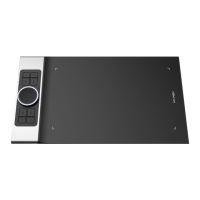
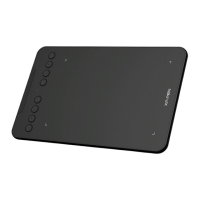
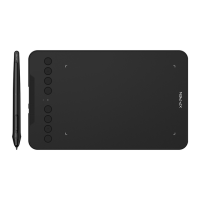
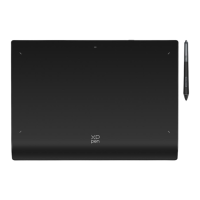
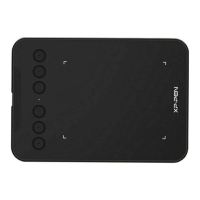
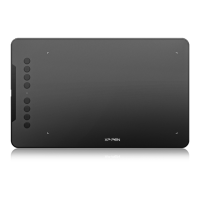
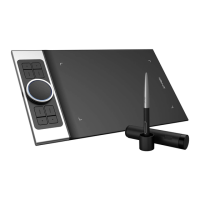
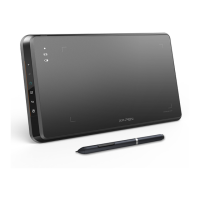
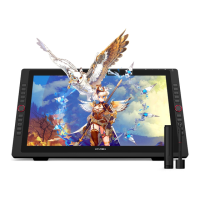
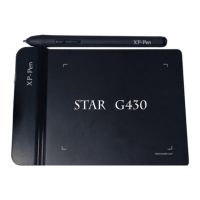
If the device is successfully connected to the computer, the device’s picture will be displayed on
the driver interface. If the connection fails, restart your computer or driver. Multiple devices can
be connected at the same time, and up to three devices are supported. After switching one of
the devices, user-defined settings can be made for the current device, and the settings only work
for the currently selected device.
Save settings:
Please click the "OK" button on the left side of the driver interface to save the settings after
changing the configuration; otherwise, the changed settings will work only for the current use.
i Work area
a. Screen
If multiple monitors are used in duplicate mode, the device’s work area will be mapped to all
monitors. When the stylus moves in the device’s work area, the cursor on all monitors will move
at the same time. If multiple monitors are used in extended mode, on the driver interface, select
which monitor the device’s work area is mapped to.


 To Next Page
 Loading...