1. Battery Charging
• Charge with travel charger
Insert the small plug end of the USB data cable into the
TYPE-C port of the device, insert
the large plug end of the USB data cable into the travel charger plug, and then insert the
travel charger plug into a power outlet to charge.
•
Charge with USB data cable
Insert the small plug end of the USB data cable into the
TYPE-C port of the device, insert
the large plug end into the USB port of the computer to charge.
Note: During normal charging, the home screen status bar will display the charging icon
when screen is on.
When the charging is completed, the home screen status bar will display the full
battery icon when screen is on.
2. Install SIM card, memory card, battery
Power of
f the device before installing or removing the SIM card, MicroSD card or
battery.
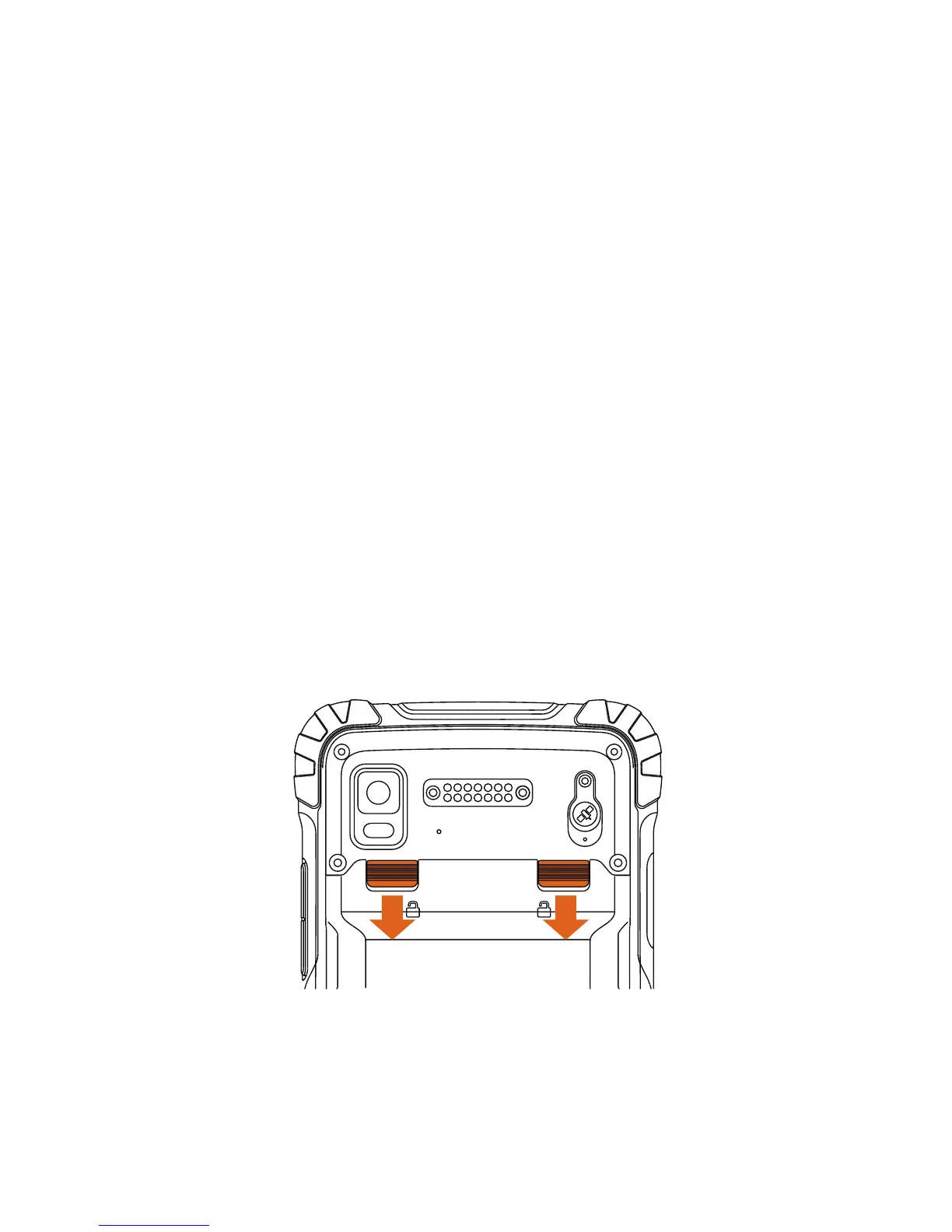
Flip the device to its rear, follow the directions shown in Figure 1 and push the back cover
lock to the open position, and remove the battery cover. Install the SIM card and MicroSD
card according to the battery compartment label instructions, as shown in Figure 2.
Figure 1


 To Next Page
 Loading...