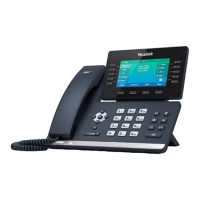
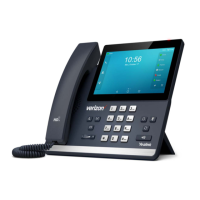
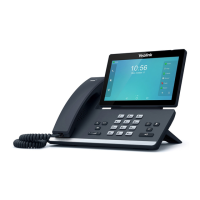
Displays the phone’s default account, icons and the
time and date.
The label of the default account is displayed on the
left of the status bar.
If multiple accounts are already registered, tap and
select the desired default account.
Icons are displayed in the middle of the status bar.
The phone’s time and date are displayed on the right
of the status bar.
Use the Feature Management Portal to assign
additional phone lines or Speed Dials to these keys.
Provides a quick access to the line key screen. Then,
you can tap the desired line key to configure it.
Shows the specified wallpaper, which can be
customized.
Displays call information.
: tap this shortcut key to enter the History screen
and view call history.
: tap this shortcut key to enter the Directory
screen and view contacts.
: tap this shortcut key to toggle the DND mode
or enter the custom DND configuration screen.
: tap this shortcut key to enter the main menu.
Touch Screen
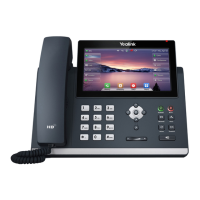
T48S with a touch screen, so you can touch the Icon/Menu on the LCD screen to access the feature.
Phone Status
You can view phone status via phone user interface or web user interface.
Available information of phone status includes:
• Network status (e.g., IPv4 status, IP address mode, MAC address, LAN type, LAN IP and LAN
mask).
• Phone status (e.g., device model, hardware version, firmware version and product ID).
• Account status (e.g., register status of SIP accounts).
To view the phone status via phone user interface:
1. Press , or press Menu->Status.
2. Press or to scroll through the list and view the specific information.



 To Next Page
 Loading...