WWW.YEHUDA.COM
3
1 – FREE tablet for testing
2 – Loose stone sorting trays
1.5”x2.5” and 4.5”x5″
2 – Loose stone trays with
sections 1.5”x2.5” and 4”x5”
1 – Tray with 5 magnetic nger
ring holders
2 – Slotted ring holder trays
(each holds up to 108 rings)
1 – USB data cable for the tablet
1 – Worldwide power supply
100-240V
ON/OFF:
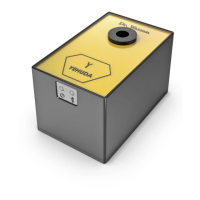
At the back of the detector you will nd the ON/OFF power button. In order to turn the box ON or OFF,
please press and hold the button for 3 seconds. An LED indicator at the front of the box will show when it
is ON or OFF. The battery powered Dr. Watson will automatically power down by itself after 5 minutes of
being idle.
Dr. Watson Charging Instructions:
In order to charge the battery in the Dr. Watson, simply connect the USB cable to it in the same way
you would charge your mobile phone. To fully charge its battery, keep it plugged in overnight. In your
YEHUDA app you will see a battery indicator that will advise you when it needs recharging. The Dr.
Watson may be used while charging. A full charge should provide about 2 weeks of operation.
Warranty:
YEHUDA detectors feature a full ONE YEAR WARRANTY under normal use. Opening the detectors body
or tampering with any of the screws will void the warranty, and result in the factory’s refusal to repair
the detector. The warranty does not cover user abuse, water damage, being hit, dropped or any other
type of improper care. The purchaser shall incur the cost for shipping, insurance, and handling for all
warranty and non-warranty repairs. Warranty repairs will be shipped back FOB Destination. The tablet
provided with the Big Sherlock is not covered under this warranty. Within the rst month of registering
your detector you have the option of purchasing an extended warranty. If you would like to purchase an
extended warranty, this must be done through the YEHUDA app.
HOW TO RUN A TESTHOW TO RUN A TEST
After you have completed your registration, connect your phone to your detector to start the test.
Please follow these steps:
Congratulations! You have just completed your rst test.
To run a new test, tap the orange button located at the bottom left of the screen.
To add more les tap “Continue”, then you can continue to save the results to your cloud.
To log into your cloud account go to Cloud.Yehuda.com
For further information and more detailed instructions,
please visit our website for the full manual and instructional videos.
1. Make sure your phone’s Bluetooth is turned ON.
2. Hold the power button on the back of the detector for 3 seconds to power your
diamond detector on.
3. Tap “Menu” at the bottom right of your screen.
4. Tap “Connect box”
5. Tap “Scan Device-off”
(It will change to “Scan Devices-on”)
6. Tap on the corresponding Yehuda device.
7. Tap the Camera icon. A white light will appear inside your detector once the camera is
active.
8. Aim the camera at the object you wish to test, zoom in or out as necessary.
9. Focus by tapping on the screen
10. Tap “Run test”


 To Next Page
 Loading...