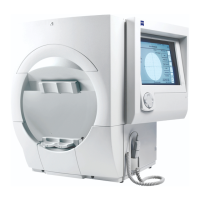
Humphrey Field Analyzer II-
i
series User Manual 2660021145640 A
Guided Progression Analysis (GPA)
8-35
GPA Recalls Previous Test Selections
For a given patient, once a set of Baseline and Follow-up tests has been selected, either
automatically by GPA or manually by the user, the exam selection is remembered. This feature saves
you from having to re-select the desired Baseline and Follow-up tests each time you run GPA for the
same patient and eye.
Note: When you transfer exams from one HFA instrument
to another using a direct serial cable
connection, the GPA exam selection will not be transferred. In these cases, you must re-select the
Baseline and Follow-up tests in the destination instrument. However, if you transfer exams via
floppy disk or a USB storage device using Copy Tests or Move Tests, the GPA exam selection will be
transferred as usual.
Note: When synchronizing with HFA-NET Pro, the most recent change to the GPA exam selection list
will be duplicated on each instrument. For example, if you change the Baseline exams on HFA II-
i
“B”, then the new Baseline exams will be indicated on HFA II-
i
“A” after synchronization.
New tests are added to the list of selected Follow-up tests a
utomatically. However, the maximum
number of Follow-up tests is 14. This means that if 14 tests were already selected, GPA
automatically adds the new test and removes the earliest test from the list of selected Follow-up
tests. To change the default selection, you must do so via the Exam Selection – GPA screen.
If after having performed GPA for a given patient, you import or delete exams, then the r
emembered
exam selection may no longer be valid. In such cases, the following message will appear:
Previous GPA exam selection for the <right or left> eye
has been altered. You must re-define your selection.
OK
Press OK to go to the Exam Selection – GPA screen. A default selection of Baseline and Follow-up
tests will be made, but you can re-select the desired Baseline and Follow-up tests.
How to Activate GPA Software on the HFA II-
i
The GPA software comes factory-installed on all new HFA II-
i
instruments except the Model 720
i
.
However, you must activate the GPA software for it to function on your HFA II-
i
.
To obtain a GPA license, you must contact Carl Zeiss Meditec:
In the U.S.: Call Carl Z
eiss Meditec at 1-800-341-6968.
Outside the U.S.: Cont
act your local Carl Zeiss Meditec distributor.
Once you have obtained your license, you can activate it using the pr
ocedure that is provided in
Appendix (J) beginning with “Licensing GPA, SITA-SWAP, HFA-NET Pro, or DICOM G
ateway 2.0,” on
page J-5.


 To Next Page
 Loading...